PSUR
This section guides you through the creation of a Periodic Safety Update Report (PSUR) using the Cloud Wizard.
Wizard Instructions
The PSUR Cloud Wizard streamlines the creation of EU MDR compliant reports.
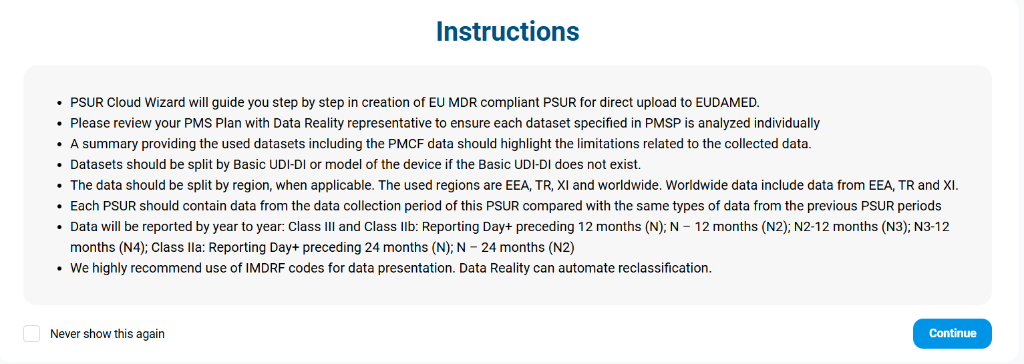
- Compliance: Designed for direct upload to EUDAMED.
- Data Handling: Ensure datasets are split by Basic UDI-DI or device model.
- Regional Data: Supports regions like EEA, TR, XI, and worldwide data.
- Timeline: Compares current data collection periods with previous ones (Year-to-Year analysis).
Setup & Configuration
Configure the core details of your submission on the Cover Page.
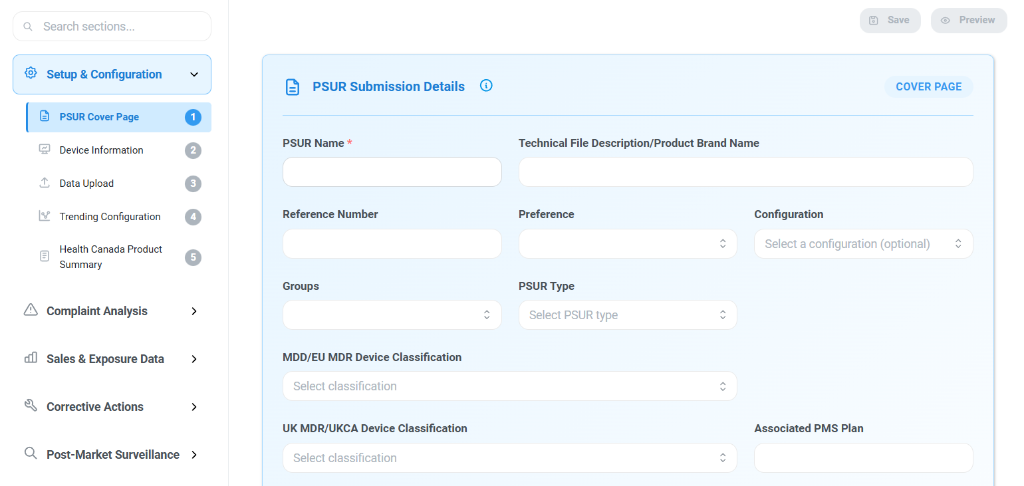
Submission Details
- PSUR Name: Unique identifier for this report instance.
- Technical File/Brand Name: The official name of the product or technical file.
- Reference Number: Internal tracking or regulatory reference number.
- Configuration: Select pre-defined configurations if applicable.
- Device Classification: Specify MDD/EU MDR (Class IIa, IIb, III) and UK MDR/UKCA classifications.
Reporting Periods
Define the specific timeframes for data collection and reporting.
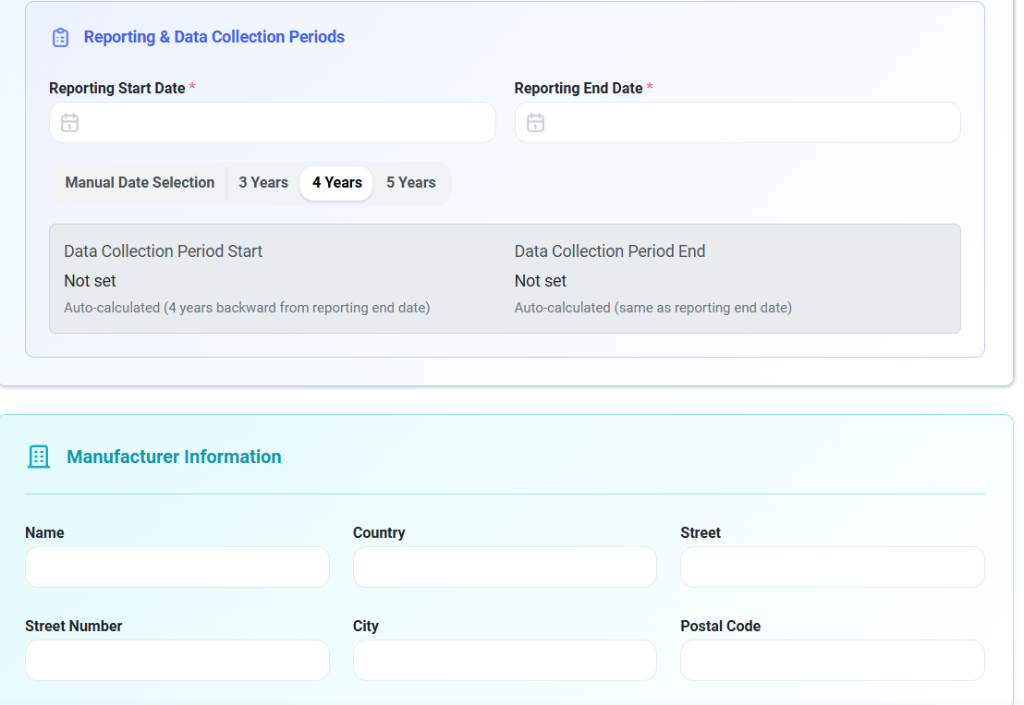
- Reporting Start/End Date: The official window for the PSUR.
- Data Collection Period: Auto-calculated based on your reporting interval (e.g., 3, 4, or 5 years) to ensure sufficiency of clinical data.
Manufacturer Information
Enter the legal entity details and notified body information.
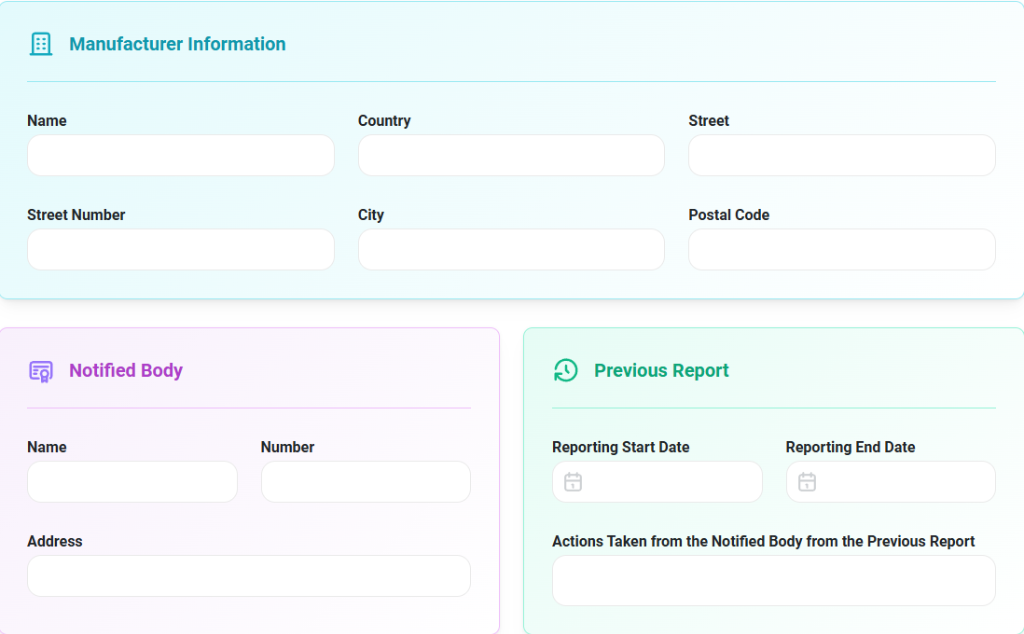
- Manufacturer: Name, Country, Street, City, and Postal Code.
- Notified Body: Name, Number, and Address of the certifying body.
- Previous Report: Link to the preceding PSUR by defining its start and end dates for continuity.
Device Information
Group your devices for organized reporting.
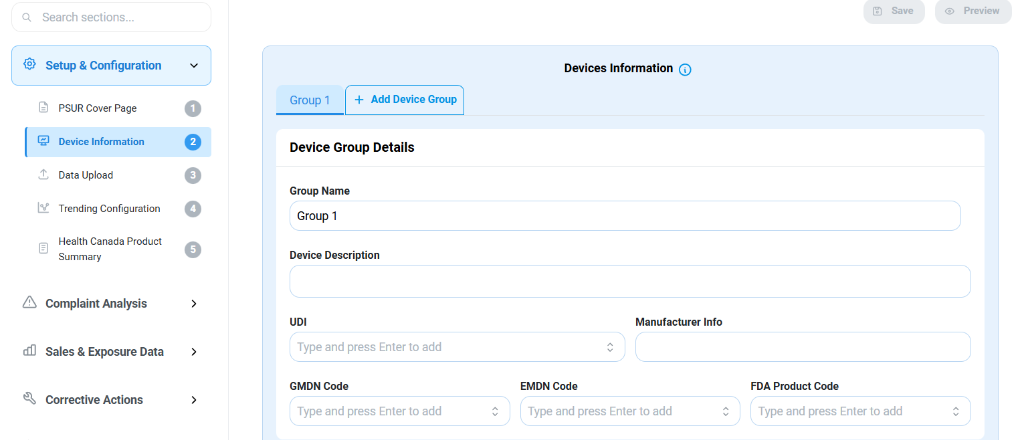
- Device Group Details: Assign a Group Name and Description.
- UDI & Codes:
- UDI: Unique Device Identifier.
- GMDN Code: Global Medical Device Nomenclature.
- EMDN Code: European Medical Device Nomenclature.
- FDA Product Code: Relevant US FDA classification codes.
Data Upload
Centralize your safety data from multiple sources. The Data Upload step ensures all relevant inputs—complaints, sales metrics, and patient exposure logs—are ingested for analysis.
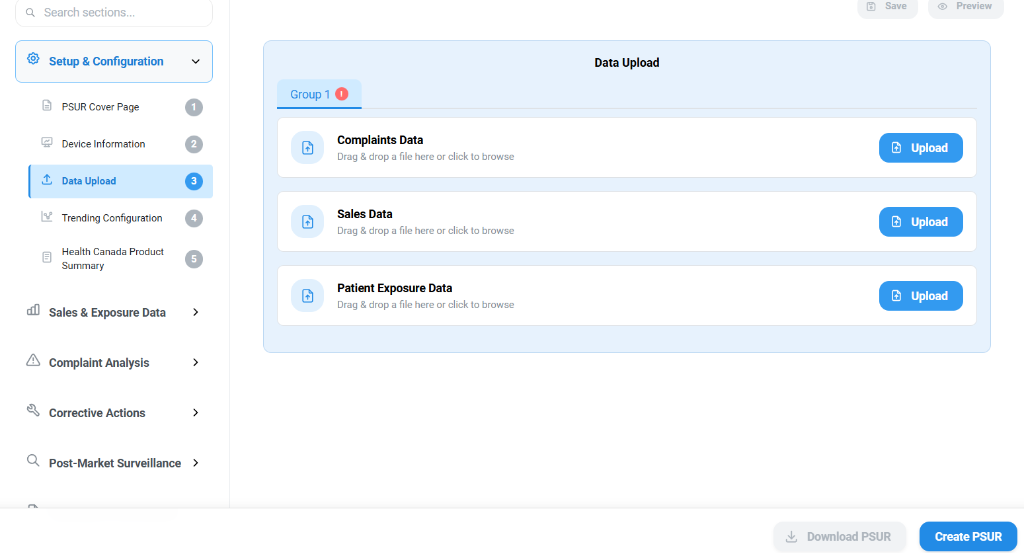
- Data Streams:
- Complaints Data: Drag & drop CSV/Excel files containing adverse event logs.
- Sales Data: Upload sales figures to calculate denominator data for rate analysis.
- Patient Exposure Data: Import registry or clinical data to estimate total patient days.
- Validation: The system automatically checks for formatting errors (e.g., date formats, missing columns) upon upload.
Trending Configuration
Define the statistical rules for your analysis. Trending allows you to detect statistically significant increases in adverse events over time.
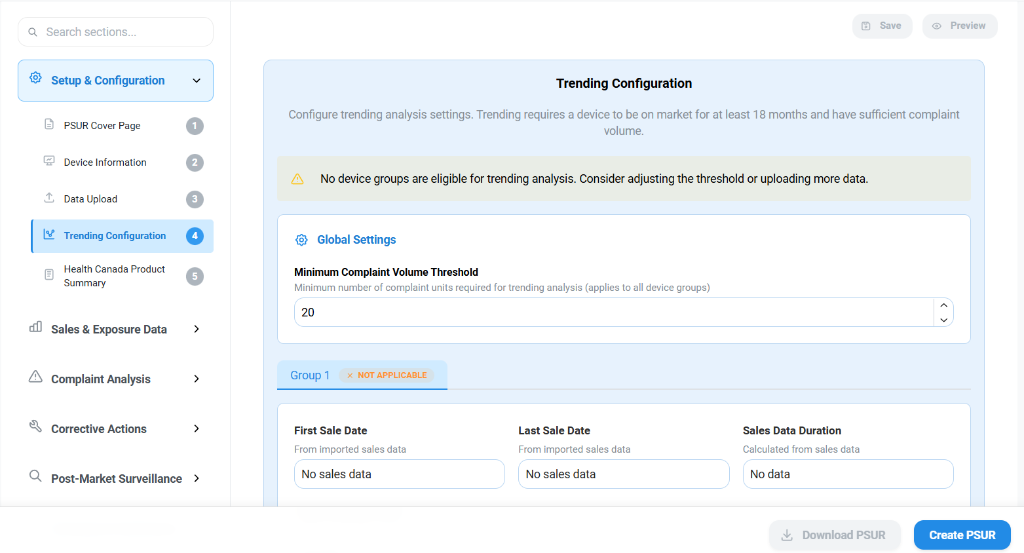
- Global Settings:
- Minimum Complaint Volume Threshold: Set the baseline number of complaints (e.g., 20) required to trigger a trending calculation. This prevents low-volume noise from generating false alerts.
- Sales Data Parameters:
- First/Last Sale Date: Automatically extracted from your uploaded sales dataset.
- Sales Data Duration: The calculated time span covered by the sales data, ensuring it matches your reporting period.
Health Canada Product Summary
For submissions to Health Canada, specific license information is required. This section is dynamic and appears only when Canadian regulations are applicable.
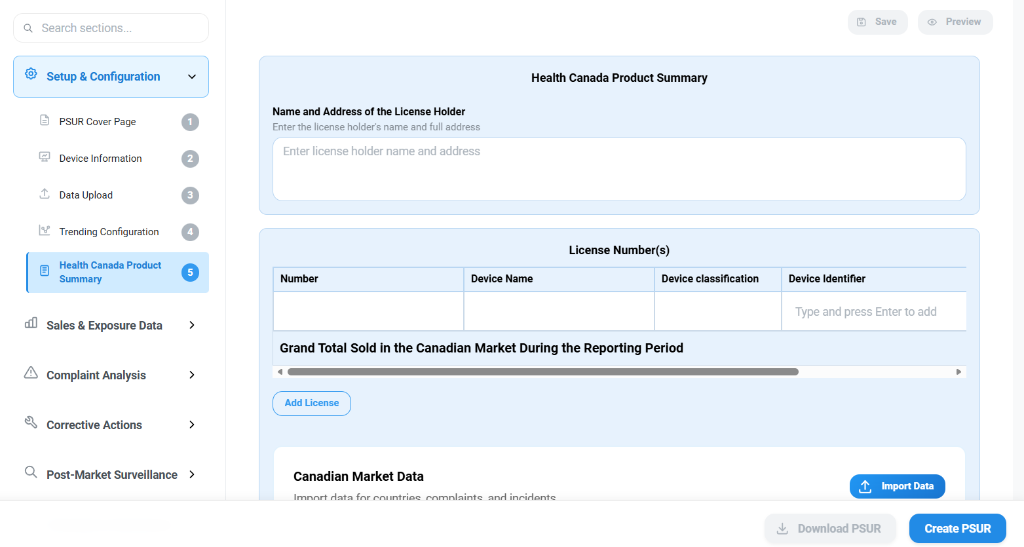
- License Holder Details: The legal name and address of the entity holding the medical device license.
- License Management:
- License Number: The unique identifier issued by Health Canada.
- Device Classification: The risk class (e.g., Class II, III, IV) as per Canadian Medical Devices Regulations (CMDR).
- Grand Total Sold: A calculated aggregate of all units sold in the Canadian market during the defined reporting window.
Sales & Exposure Data
Correlate complaint data with sales figures to assess risk exposure.
Characteristics of Population
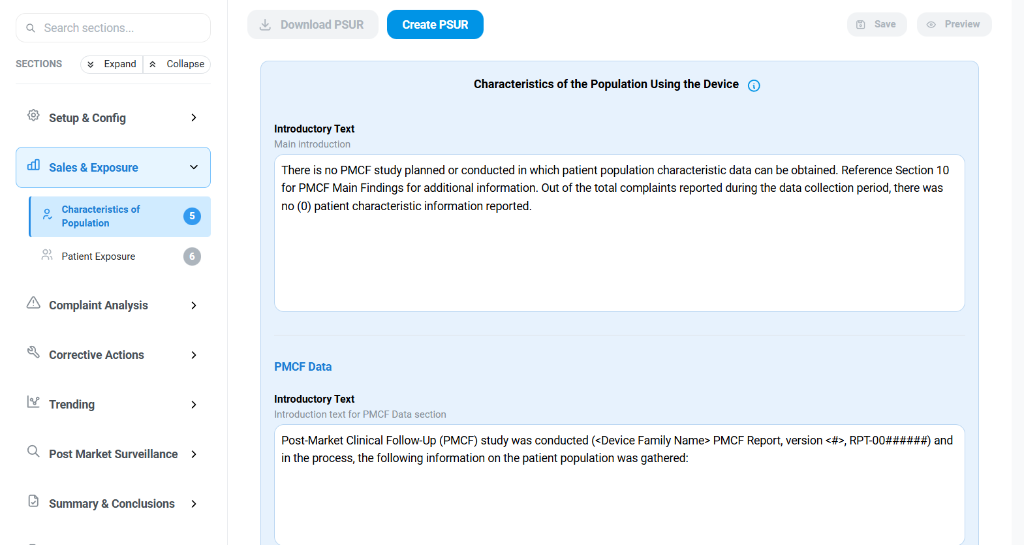
The Characteristics of Population section (labeled "5") enables you to document the demographics and clinical characteristics of the patients using the device.
- Introductory Text: A text area to provide the main introduction and context regarding the patient population.
- PMCF Data: Allows you to explicitly reference data obtained from Post-Market Clinical Follow-Up (PMCF) studies to substantiate your population descriptions.
Patient Exposure
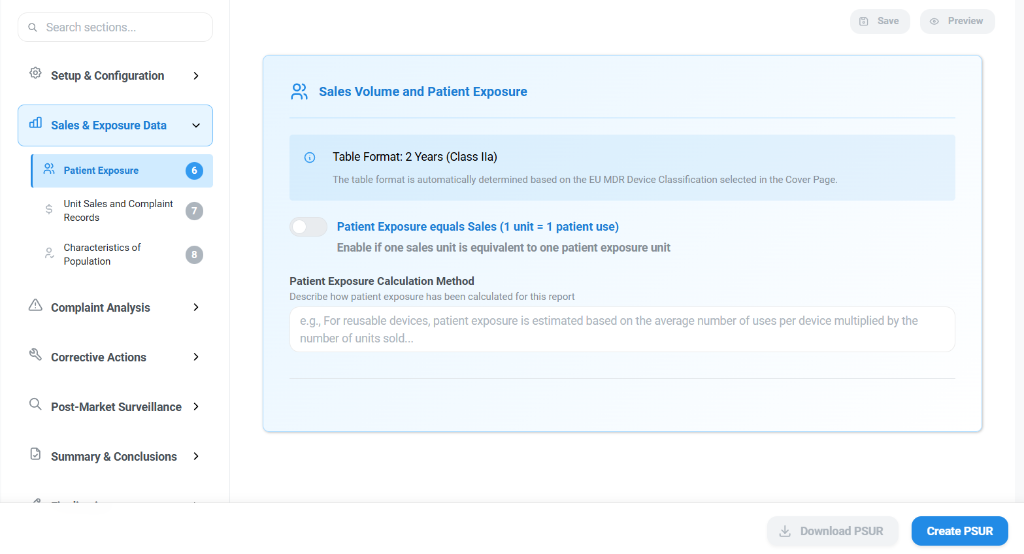
The Sales Volume and Patient Exposure section allows you to configure how patient exposure is calculated and reported.
- Patient Exposure: This subsection (labeled "6") is where you define the calculation logic.
- Table Format: The system automatically determines the table format (e.g., "2 Years") based on the Device Classification selected in the Cover Page (e.g., Class IIa).
- Patient Exposure equals Sales: A toggle switch that, when enabled, treats one sales unit as equivalent to one patient exposure unit.
- Patient Exposure Calculation Method: A distinct text field where you must describe the methodology used for calculating patient exposure. This is particularly important for reusable devices where one sold unit does not equal one single use (e.g., "estimated based on average number of uses per device multiplied by units sold").
Complaint Analysis
This module filters and organizes your complaint data to provide granular insights into product performance.
Complaint Rates
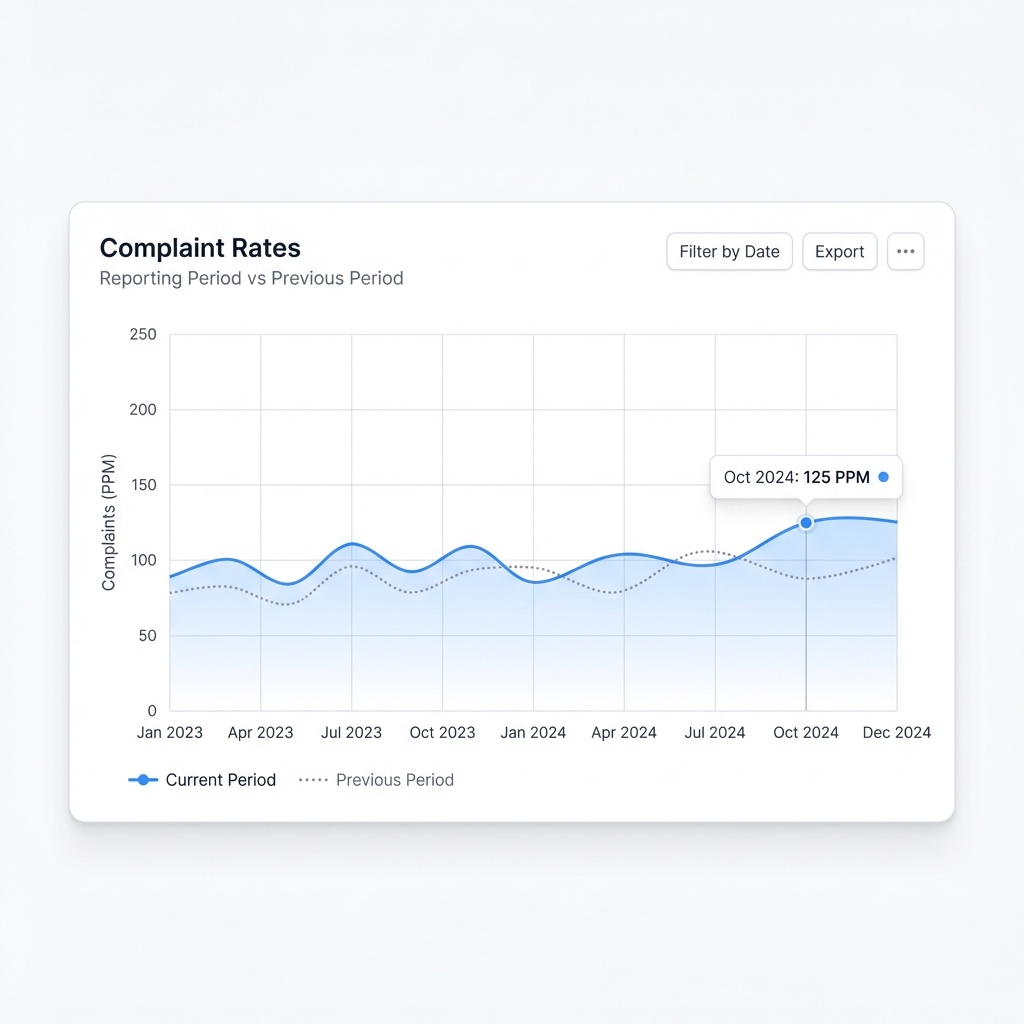
The Complaint Rates chart visualizes the trend of device failures over time, normalized to Parts Per Million (PPM) based on sales volume.
- Trend Analysis: Easily identify spikes or drifts in complaint frequency.
- Period Comparison: Overlay trends from the previous reporting period (dotted line) to benchmark current performance against historical data.
- Drill-down: Hover over any data point to reveal specific numerical values for that month.
BUDI-DI Aggregated Data
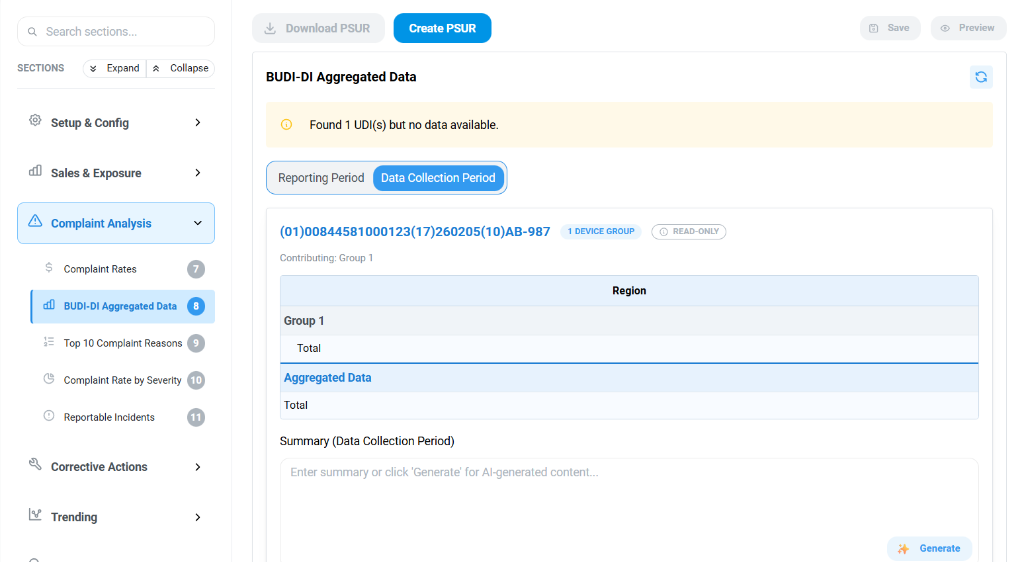
The BUDI-DI Aggregated Data section provides a consolidated view of complaint data organized by Basic UDI-DI.
- Data Aggregation: Groups data by UDI to allow for specific device analysis.
- Period Views: Switch between Reporting Period and Data Collection Period to see data for different timeframes.
- Regional Breakdown: Displays the total count of events per region for the selected device group.
- Summary: An AI-powered text area ("Generate" button) allows you to automatically create a summary of the aggregated data for the collection period.
Top 10 Complaint Reasons
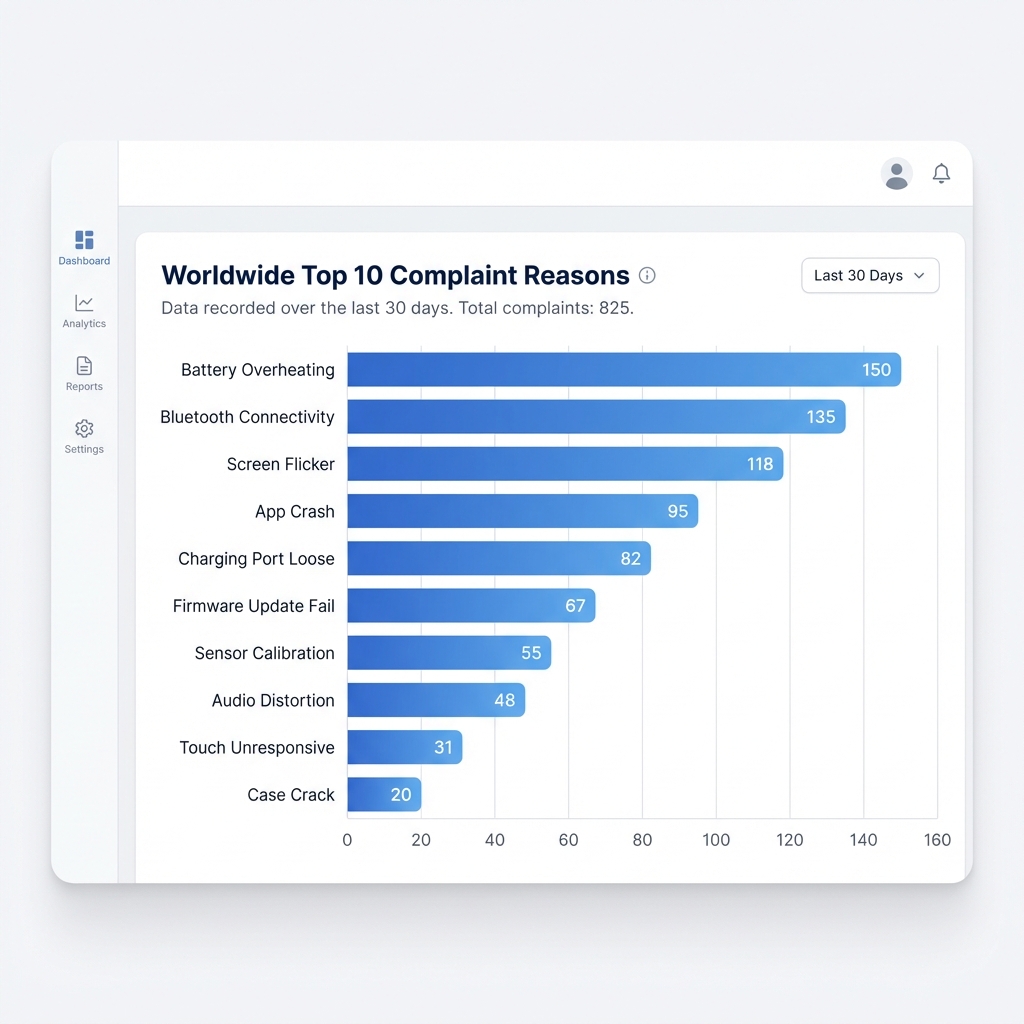
Prioritize your engineering resources by focusing on the most frequent failure modes.
- Pareto Analysis: Instantly see which issues contribute most to your complaint volume.
- Categorization: Data is automatically aggregated based on the "Complaint Reason" field in your uploaded dataset.
- Global View: This chart aggregates data across all regions to identify systemic design issues.
Complaint Rate by Severity
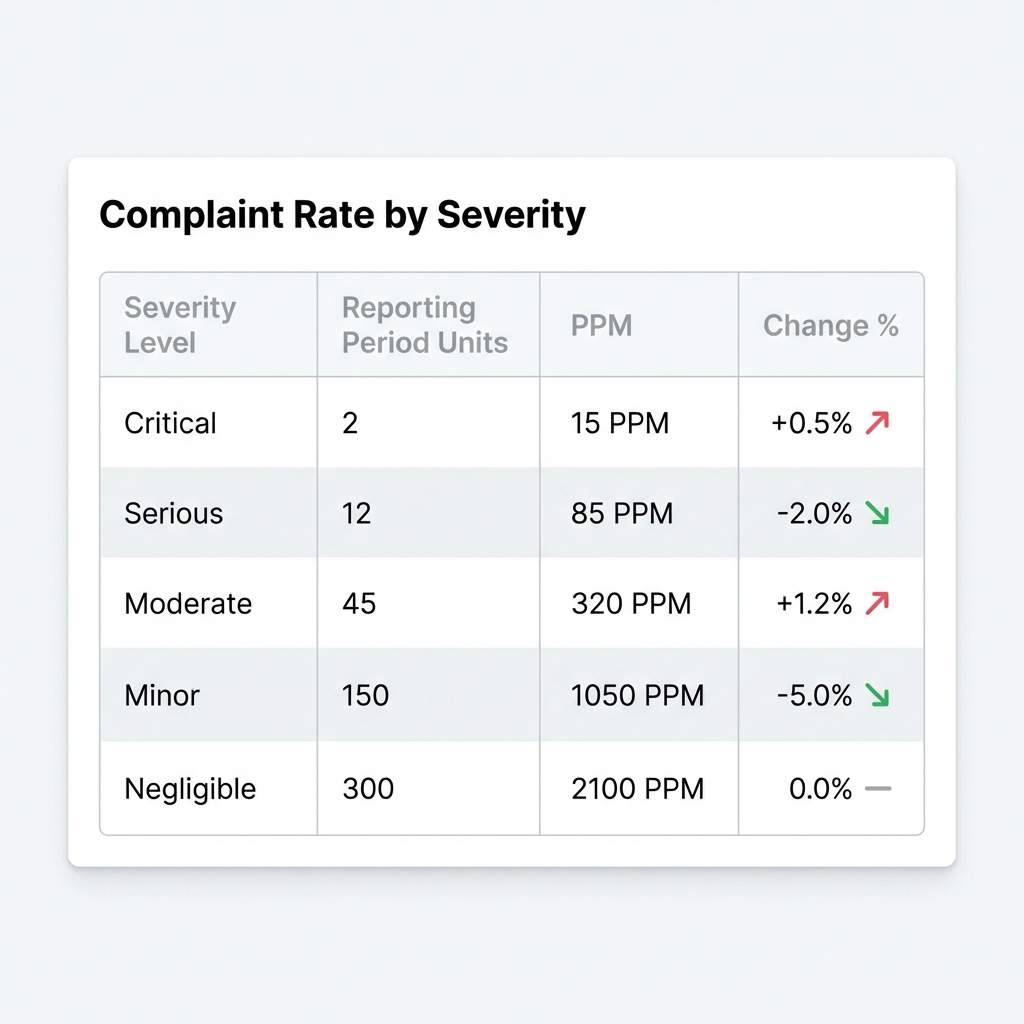
This table breaks down complaints by their risk classification, providing a clear view of safety-critical trends.
- Critical & Serious Focus: Isolate high-risk events to ensure immediate attention.
- PPM Calculation: Severity rates are normalized against sales to provide a true risk probability.
- Change Indicators: Green and Red arrows highlight statistically significant shifts compared to the previous period, enabling proactive risk management.
Reportable Incidents
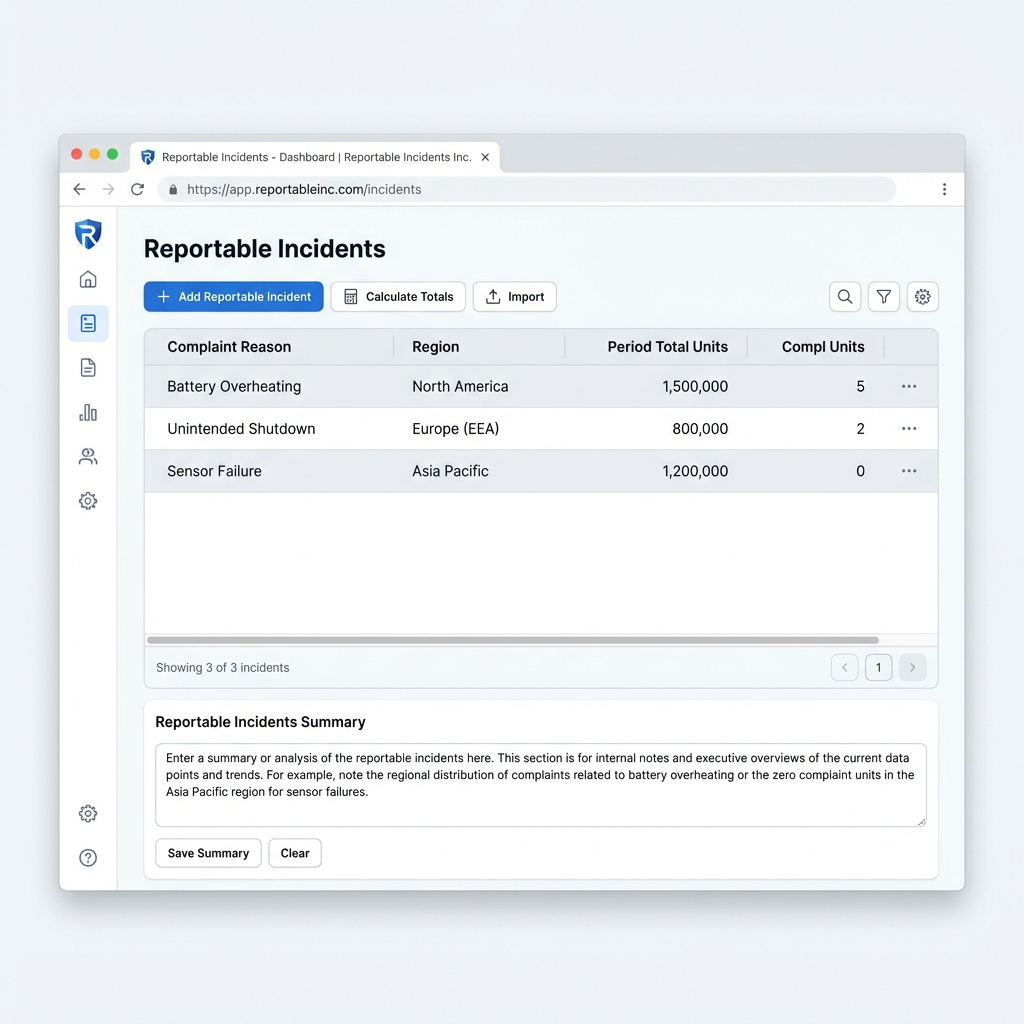
The Reportable Incidents module isolates events that meet regulatory reporting criteria (e.g., FDA MDR, EU Vigilance).
- Regulatory Filter: Automatically flags complaints that have been designated as "Reportable" in the system.
- Regional Breakdown: View incidents by affected region to ensure local compliance (e.g., specific reporting timelines for EEA vs. North America).
- Incident Summary: A dedicated text field allows you to draft a qualitative analysis of these high-priority events, which is critical for the executive summary and risk assessment.
Corrective Actions
This section enables you to document and manage regulatory actions taken for the device, ensuring full traceability and compliance.
FSCA (Field Safety Corrective Actions)
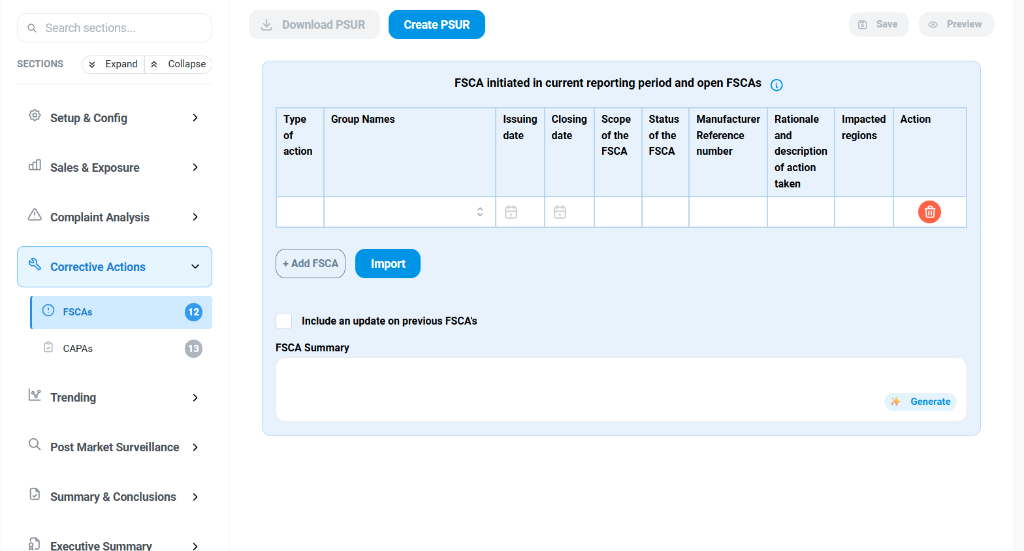
The FSCA tab allows you to record and track Field Safety Corrective Actions initiated during the reporting period, as well as any open actions from previous periods.
- FSCA Table: A structured grid to log each action.
- Type of action: Categorize the nature of the correction (e.g., Recall, modification).
- Group Names: Link the action to specific device groups affected.
- Issuing/Closing Date: Precise tracking of the action's lifecycle.
- Scope of the FSCA: Define the extent of the action.
- Status of FSCA: Current state (e.g., Open, Closed).
- Manufacturer Reference Number: Your internal tracking ID.
- Rationale & Description: A detailed text field to explain the root cause and the specific remediation steps taken.
- Impacted Regions: Specify where the action was executed.
- Import Functionality: Use the Import button to bulk upload FSCA data from external sources.
- Include an update on previous FSCAs: A checkbox to enable reporting on the status of long-running actions from prior years.
- FSCA Summary: A text area to provide a high-level narrative summary of all FSCAs. The Generate button can assist in drafting this summary based on the entered data.
CAPA (Corrective and Preventive Actions)
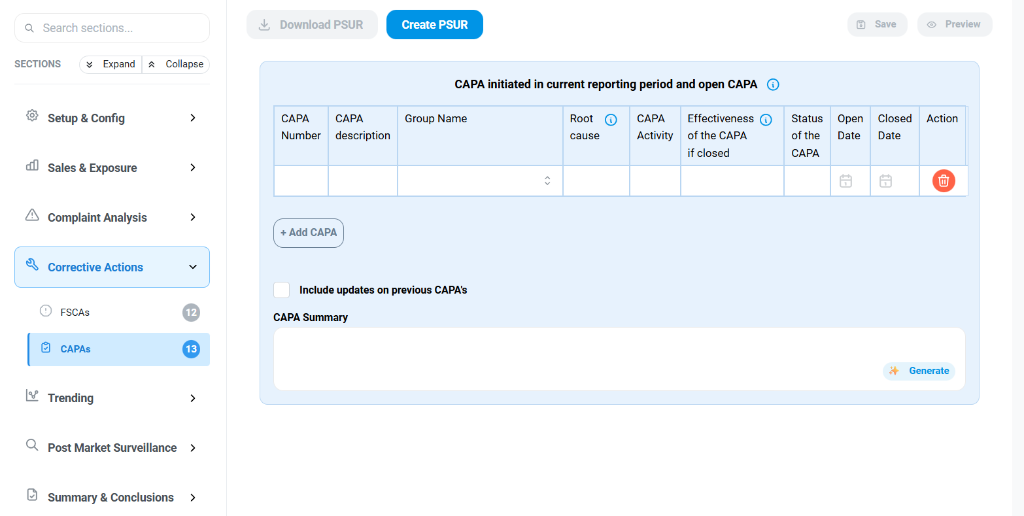
The CAPA tab focuses on internal quality improvements and preventive measures initiated within the current reporting period.
- CAPA Table:
- CAPA Number: Unique identifier for the action.
- CAPA Description: Details of the issue being addressed.
- Group Name: Associated device group.
- Root Cause: The fundamental reason for the non-conformity.
- CAPA Activity: The specific steps taken to correct or prevent the issue.
- Effectiveness: A dedicated field to describe how the effectiveness of the CAPA was verified (mandatory for closed CAPAs).
- Status: Track if the CAPA is Open or Closed.
- Open/Closed Date: Timeline tracking.
- Include updates on previous CAPAs: Toggle to include progress reports on older CAPAs.
- CAPA Summary: Similar to the FSCA section, this area allows for a narrative overview of all CAPA activities, with AI-generation support via the Generate button.
Trending
Trending analysis is a critical component of Post-Market Surveillance, used to detect Statistically Significant Increases (SSI) in the frequency or severity of adverse events.
Trending Configuration
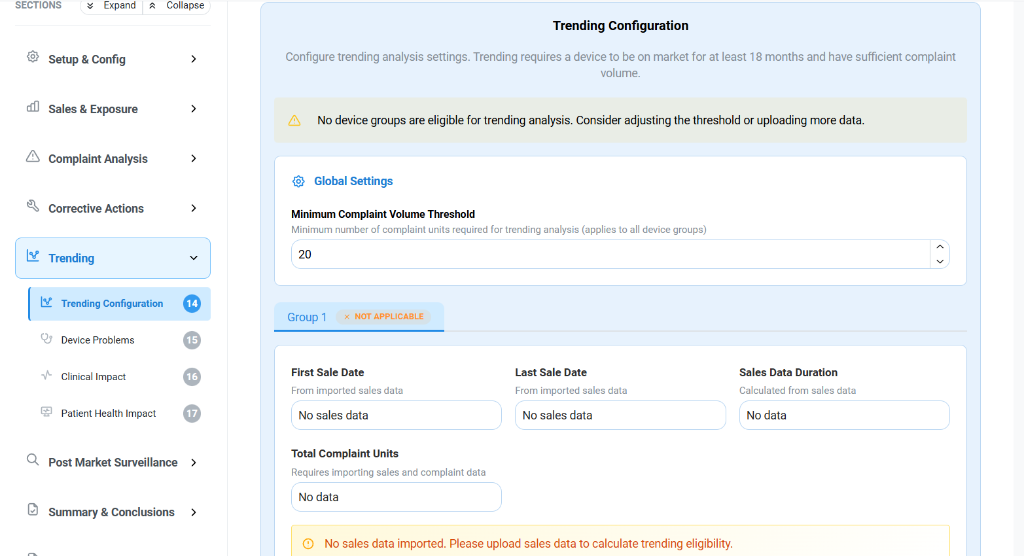
The Trending Configuration tab establishes the baseline rules for your analysis. Note that trending requires a device to be on the market for at least 18 months and have sufficient complaint volume.
- Global Settings:
- Minimum Complaint Volume Threshold: Set the minimum number of complaints required to trigger a trending analysis (e.g., 20) to filter out statistical noise from low-volume data.
- Sales Data Parameters (Per Device Group):
- First/Last Sale Date: Automatically populated from your imported sales data.
- Sales Data Duration: The calculated time span of the sales data.
- Total Complaint Units: The total number of complaints associated with this group.
- Status Indicators: The system warns if "No sales data" is imported or if a device group is "NOT APPLICABLE" for trending due to insufficient data.
Device Problems
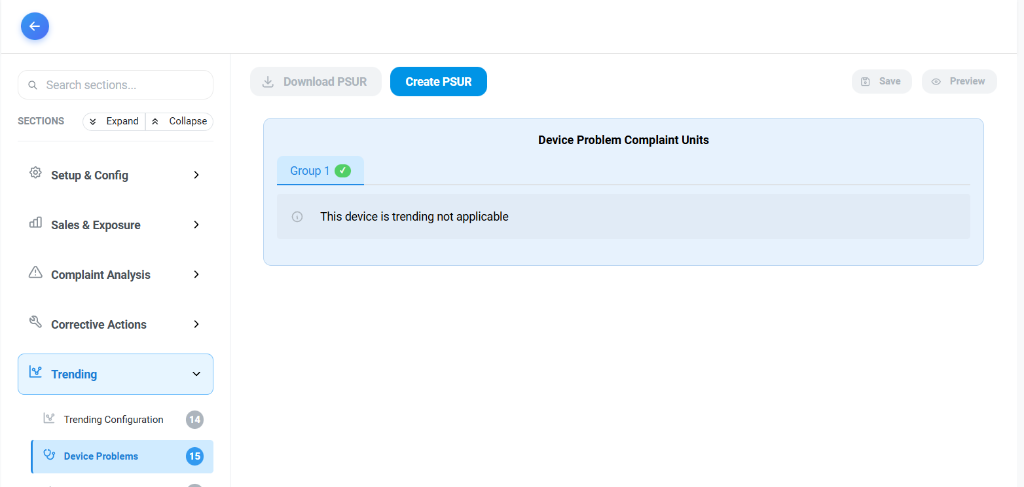
This section focuses on trending calculation for specific Device Problems.
- Group Selection: Select the device group (e.g., "Group 1") to view its specific data.
- Trending Status: In the example shown, "This device is trending not applicable" indicates that the criteria defined in the configuration (such as the minimum complaint threshold or sales duration) have not been met for this specific category.
- Purpose: When active, this tab would display a timeline or chart showing the frequency of specific device failures over time to identify emerging quality issues.
Clinical Impact
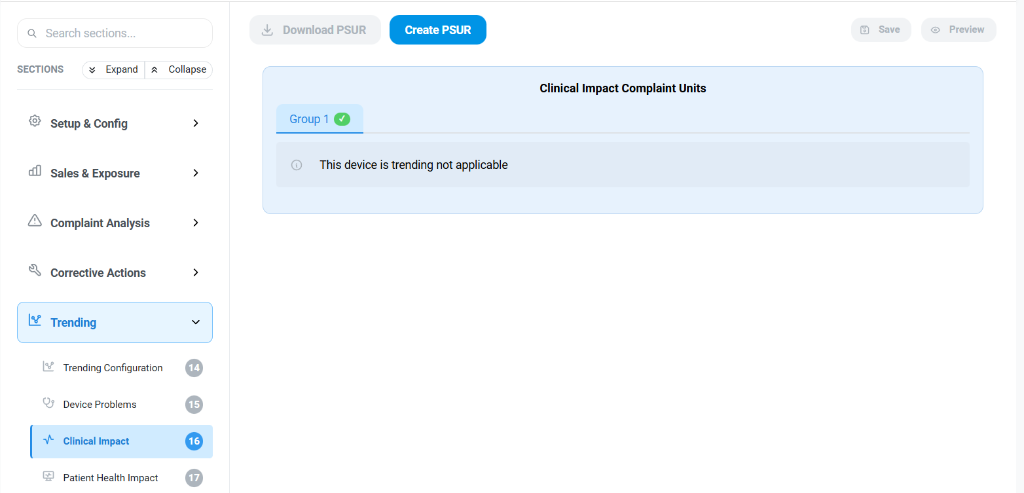
The Clinical Impact tab analyzes the severity of the consequences on the patient or user.
- Impact Assessment: Groups complaints based on the clinical outcome (e.g., minor injury, serious injury, death).
- Trending Logic: Uses the same statistical thresholds to determine if there is a significant rise in serious clinical outcomes, which would trigger immediate safety actions.
- Status: Currently showing "Trending not applicable" pending sufficient data input.
Patient Health Impact
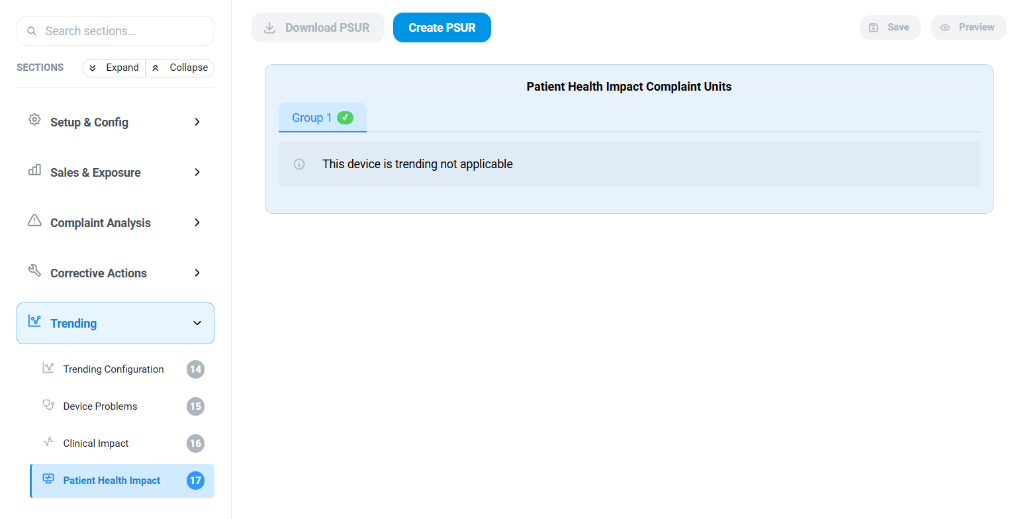
The Patient Health Impact tab specifically tracks the long-term or acute health effects on patients.
- Differentiation: While "Clinical Impact" effectively filters for severity, "Patient Health Impact" often correlates with specific diagnosis or physiological effects reported.
- Analysis: Helps in identifying if a specific adverse health effect is becoming more prevalent, even if the overall device failure rate is constant.
- Data State: As with previous tabs, the "Trending not applicable" message confirms that the dataset currently loaded does not meet the statistical validy requirements set in the "Global Settings".
Post Market Surveillance
The Post Market Surveillance (PMS) module aggregates inputs from diverse sources to validate the ongoing safety and performance of the device.
Literature Review
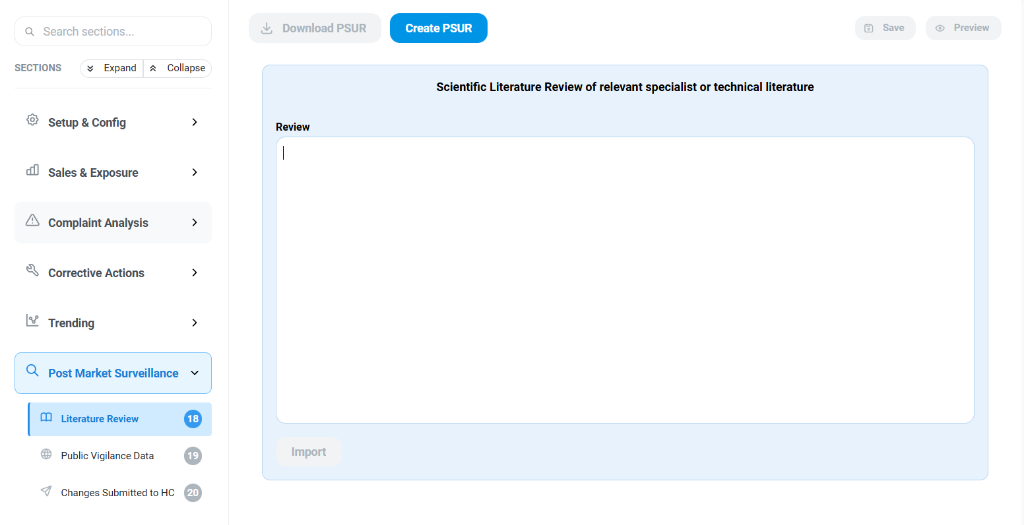
The Literature Review tab documents your assessment of relevant specialist or technical literature.
- Review Content: A collaborative text editor where you summary the findings from your systematic literature search. This should include:
- New risks identified in published studies.
- Performance benchmarks compared to state-of-the-art.
- Safety signals related to similar devices.
- Import: Allows you to pull in data from external literature management tools or previous reports.
Publicly available vigilance data
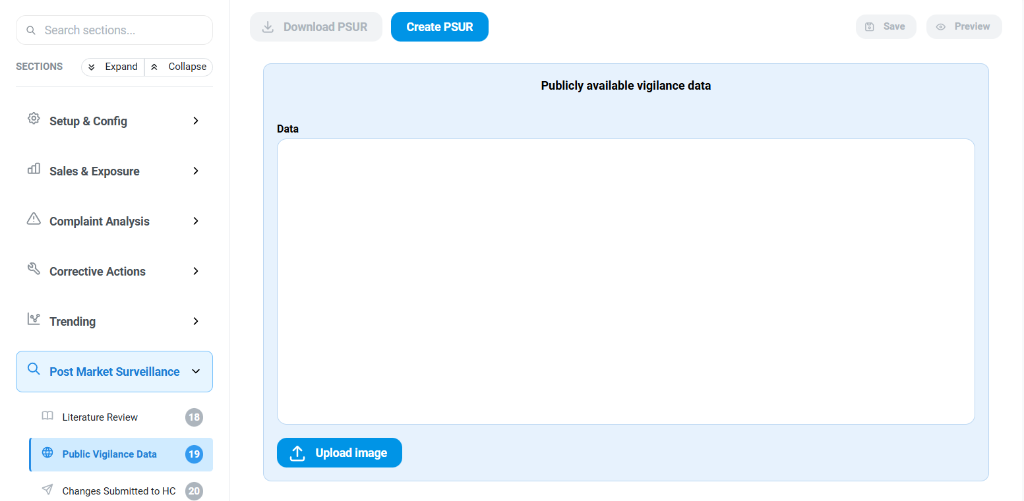
The Publicly available vigilance data tab is designed to capture safety inputs from external databases (e.g., FDA MAUDE, EUDAMED, MHRA).
- Data Entry: A field to summarize safety alerts, recalls, or adverse events reported for the device (or equivalent devices) in public registries.
- Validation Evidence:
- Upload Image: A crucial feature for compliance, allowing you to attach screenshots or PDFs directly from the database search results as proof of verification. This evidence travels with the PSUR record.
Changes Submitted to HC
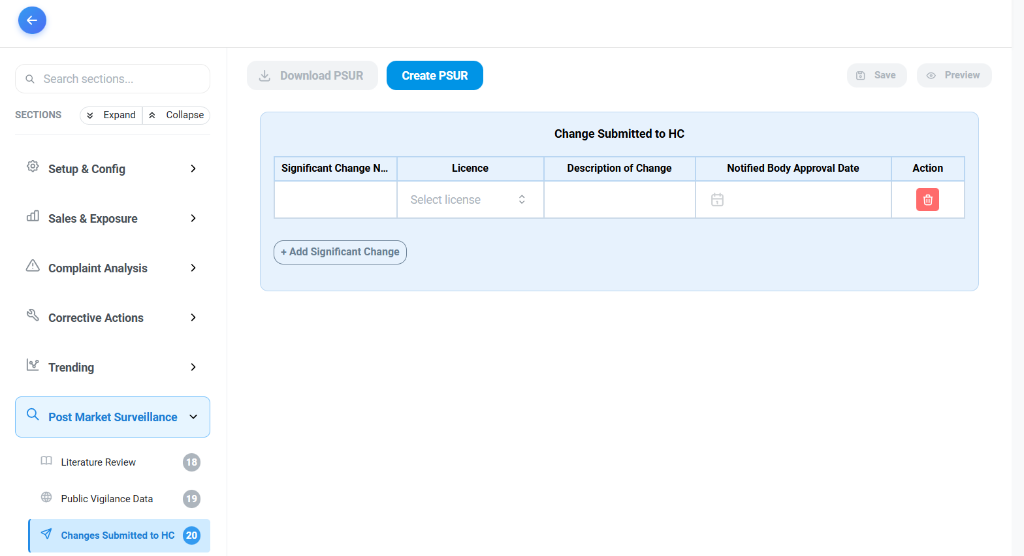
For reports submitted to Health Canada, this tab tracks specific regulatory updates.
- Significant Change Tracking:
- Significant Change Name: The official title of the modification.
- Licence: The specific Health Canada Medical Device Licence (MDL) affected.
- Description of Change: Details of the modification (e.g., label change, design update).
- Notified Body Approval Date: The date when the change was cleared by the regulatory body.
- Action: Controls to delete or manage entries.
- Purpose: Ensures that the PSUR explicitly accounts for any regulatory variation during the reporting period, maintaining alignment between the device's market status and its safety profile.
Summary & Conclusions
The final phase of the PSUR involves synthesizing the data to make definitive statements about the device's ongoing safety profile.
Benefit Risk Determination
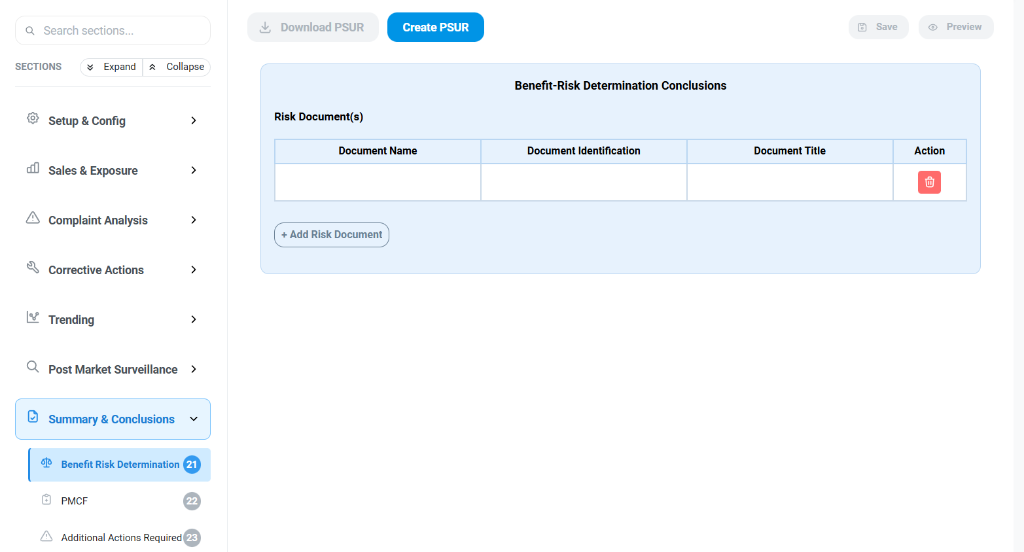
The Benefit Risk Determination tab is where you link and evaluate your core risk management documentation.
- Risk Document(s):
- Document Name: The file name of the risk analysis report.
- Document Identification: The version control ID or reference number.
- Document Title: The formal title of the document.
- Purpose: This section provides the evidentiary basis for concluding whether the benefit-risk profile remains favorable. You can upload or link the latest Risk Management Report here.
PMCF (Post-Market Clinical Follow-up)
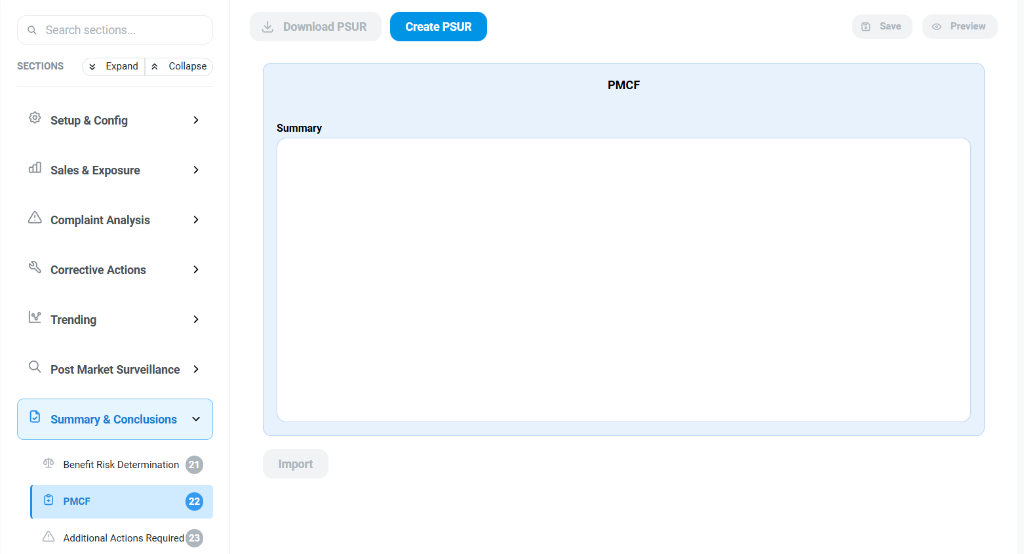
The PMCF tab allows for a narrative summary of ongoing clinical follow-up activities.
- Summary: A text field to describe the status and findings of any PMCF studies conducted during the reporting period.
- Import: Option to pull in data from dedicated PMCF modules or reports.
- Usage: Use this section to confirm if new clinical data supports the current indications for use or if gaps have been identified requiring further study.
Additional Actions Required
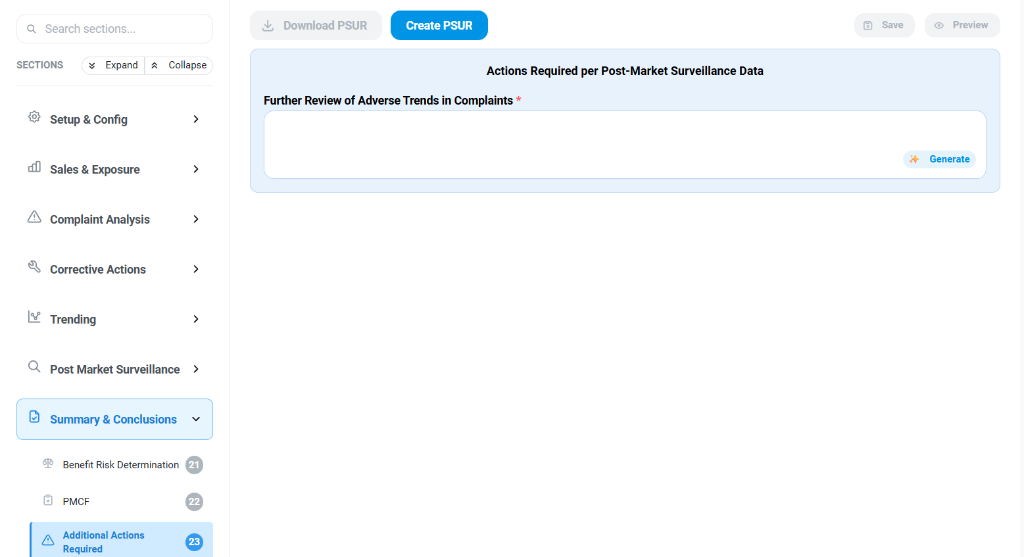
The Additional Actions Required tab acts as a final catch-all for any necessary remediation identified during the PSUR process that hasn't been captured in CAPA or FSCA sections.
- Action Description: A free-text field (e.g., "Further Review of Adverse Trends in Complaints") to specify what needs to be done.
- Usage: This is critical for closing the loop on "signals" detected during trending that may not yet warrant a full CAPA but require monitoring.
- Generate: AI assistance is available to suggest actions based on the data anomalies detected in previous sections.
Report Conclusions
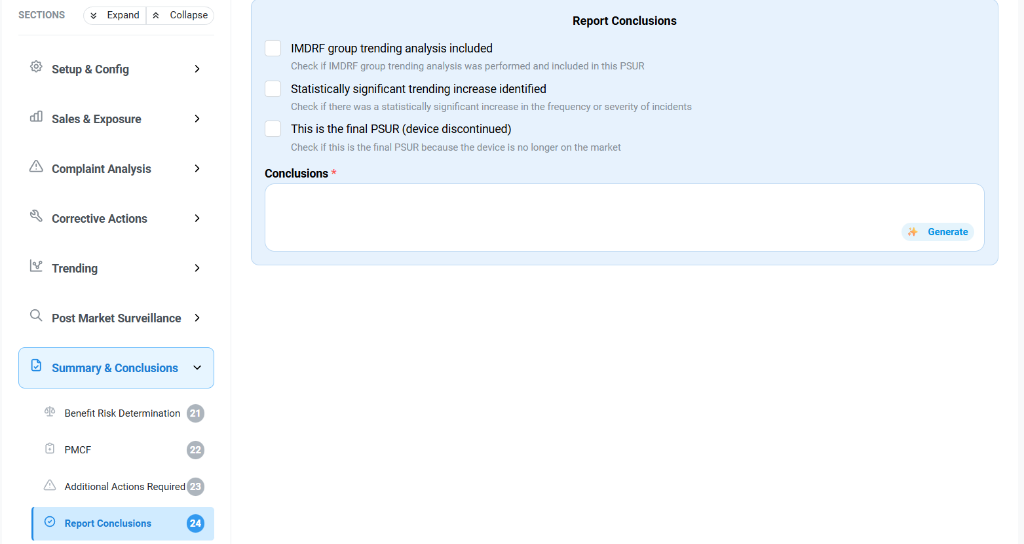
The Report Conclusions tab is the definitive statement of the PSUR.
- Checklist Conclusions:
- IMDRF group trending analysis included: Confirming compliance with international trending standards.
- Statistically significant trending increase identified: A binary declaration of safety signal detection.
- This is the final PSUR: Marking end-of-life or discontinuation contexts.
- Conclusions Text:
- A comprehensive narrative field where the Benefit-Risk Profile is explicitly re-confirmed.
- Generate: The system can draft this conclusion by aggregating findings from the Complaint Analysis, Sales Data, PMS, and Risk sections, ensuring a data-backed final statement.
Executive Summary
The Executive Summary provides a high-level overview of the PSUR, intended for rapid review by regulatory assessors or internal stakeholders.
Introduction & Previous Report
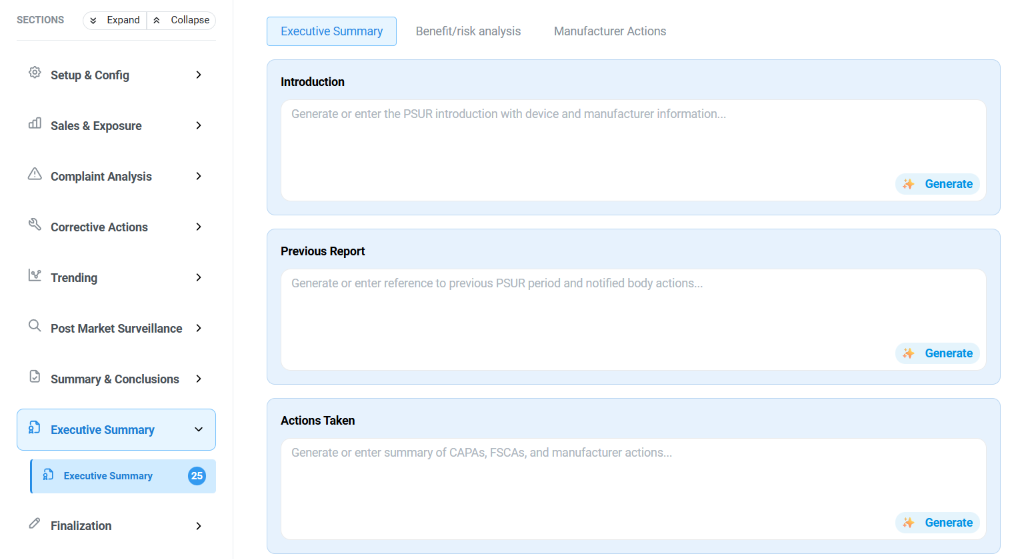
The Executive Summary tab aggregates key narrative elements:
- Introduction:
- A structured field to introduce the device, the manufacturer, and the scope of the current report.
- Generate: Use AI to draft a standard introduction based on your project settings.
- Previous Report:
- Summarizes the findings and regulatory status of the preceding PSUR to establish continuity.
- Documents any specific feedback or actions requested by the Notified Body from the last review.
- Actions Taken:
- A consolidated summary of all Corrective Actions (CAPAs, FSCAs) and other manufacturer interventions initiated during the reporting period.
Benefit/Risk Analysis
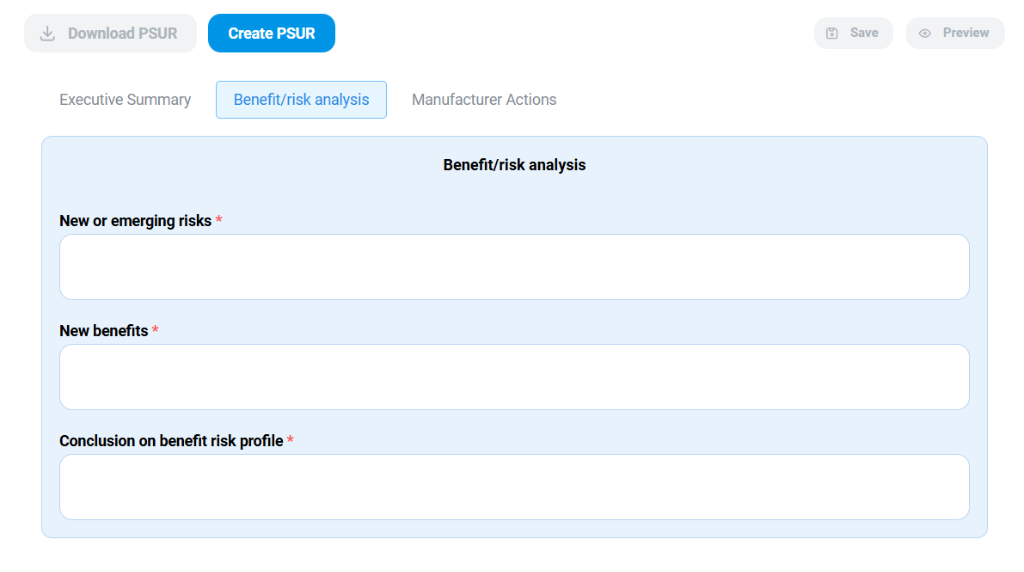
This section highlights the critical safety outcomes:
- New or emerging risks: Explicitly state any previously unrecognized risks identified during this period (e.g., from new clinical literature or complaint trends).
- New benefits: Document any new therapeutic advantages discovered or validated (e.g., expanded indications).
- Conclusion on benefit risk profile: The definitive statement on whether the device's benefits continue to outweigh its risks. This must align with the detailed analysis in the "Summary & Conclusions" module.
Manufacturer Actions
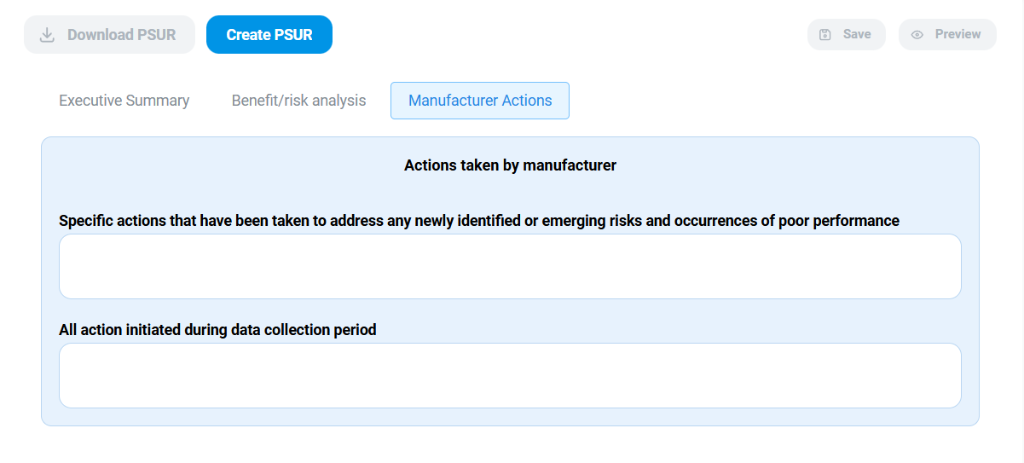
A focused review of the manufacturer's proactive safety management:
- Specific actions: Detail the specific controls implemented to mitigate newly identified risks or address underperformance.
- All action initiated: A broader log of all safety-related activities undertaken during the data collection period, demonstrating robust oversight and responsiveness.
Finalization
The Finalization module prepares the PSUR for formal release, ensuring all necessary data attachments and approvals are in place.
Appendix Configurations
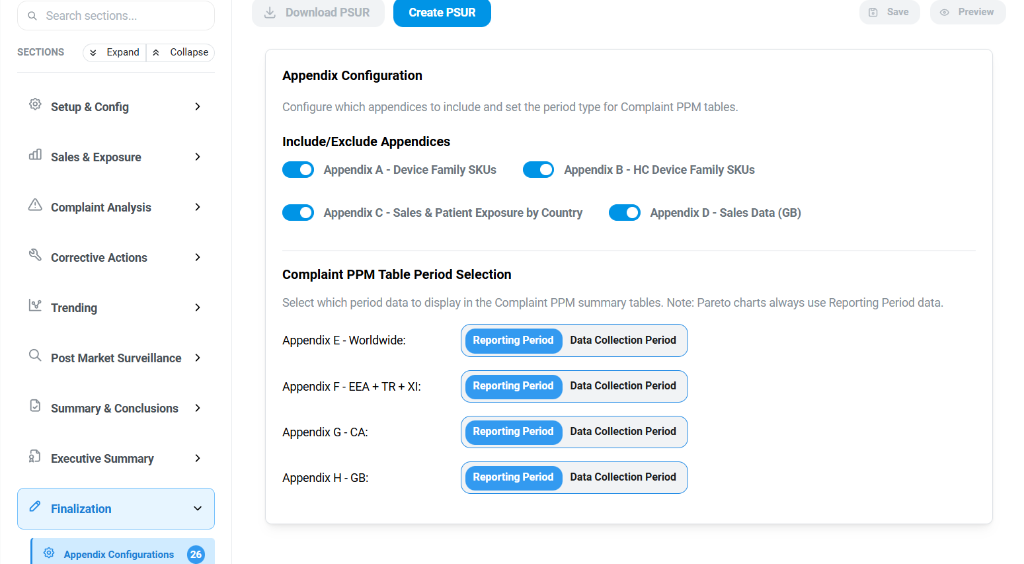
Customize the data attachments that will accompany your report:
- Include/Exclude Appendices: Toggle switches to control visibility of standard appendices.
- Appendix A/B: Detailed SKU listings for Device Families (General & Health Canada).
- Appendix C/D: Granular Sales and Patient Exposure data broken down by Country or Region (e.g., GB).
- Complaint PPM Table Period Selection: A critical configuration allowing you to choose whether your Parts Per Million (PPM) summary tables are calculated based on the Reporting Period (current window) or the Data Collection Period (potentially wider). This ensures your statistical presentation matches your regulatory strategy for each region (Worldwide, EEA, CA, etc.).
Revision History
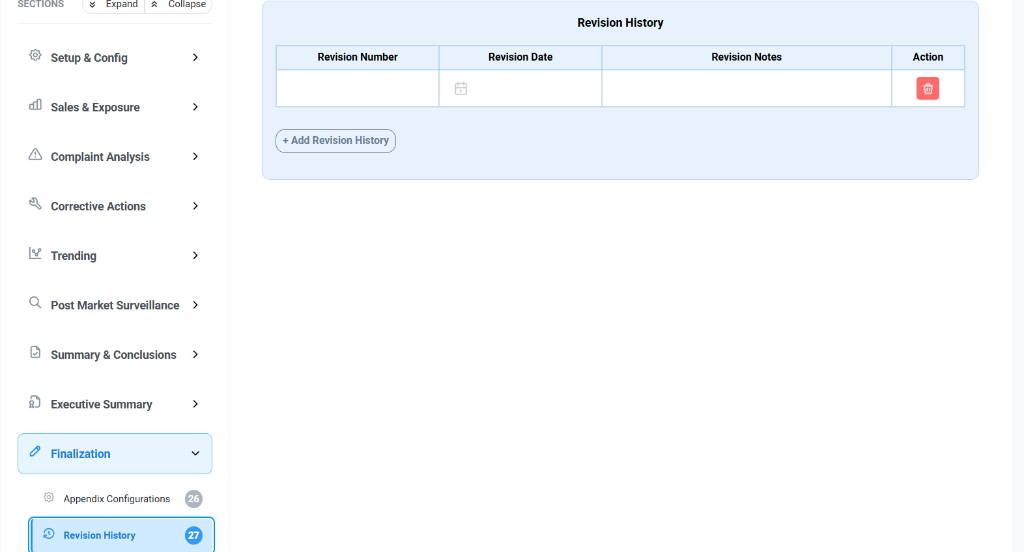
Maintain a clear audit trail of document iterations:
- Revision Log:
- Revision Number: Sequential versioning.
- Revision Date: Timestamp of the change.
- Revision Notes: A brief description of what changed (e.g., "Updated with Q4 sales data").
- Action: Manage entries to ensure the history reflects the true document lifecycle.
Signatures
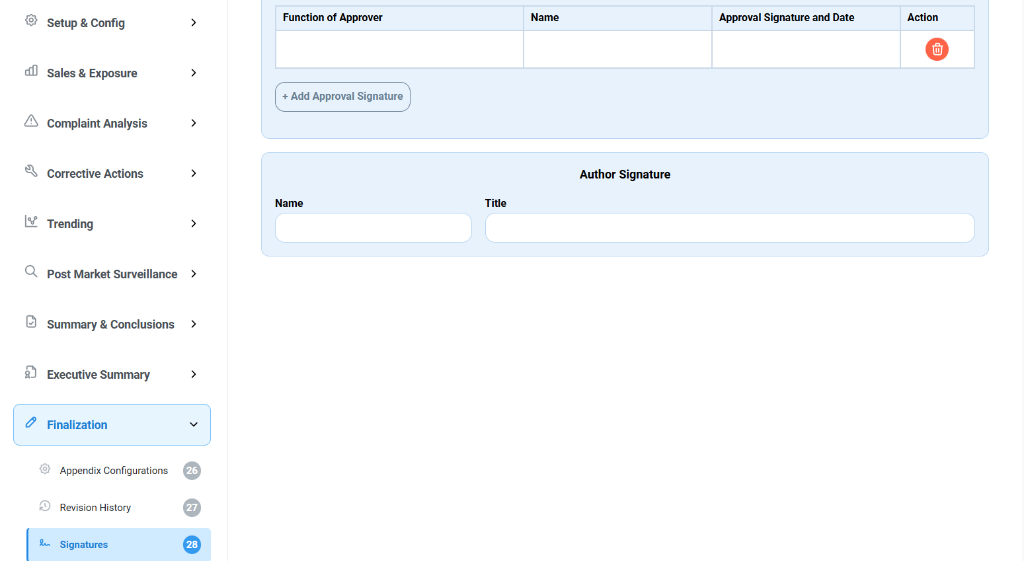
Formalize the report with required authorizations:
- Approver Workflow:
- Function: Define the role (e.g., Quality Manager, Regulatory Affairs).
- Name & Signature: Capture the identity and electronic signature.
- Date: Auto-stamped to ensure validity.
- Author Signature: Explicitly identifies the primary creator of the report, compliant with ISO 13485 documentation standards.
Download
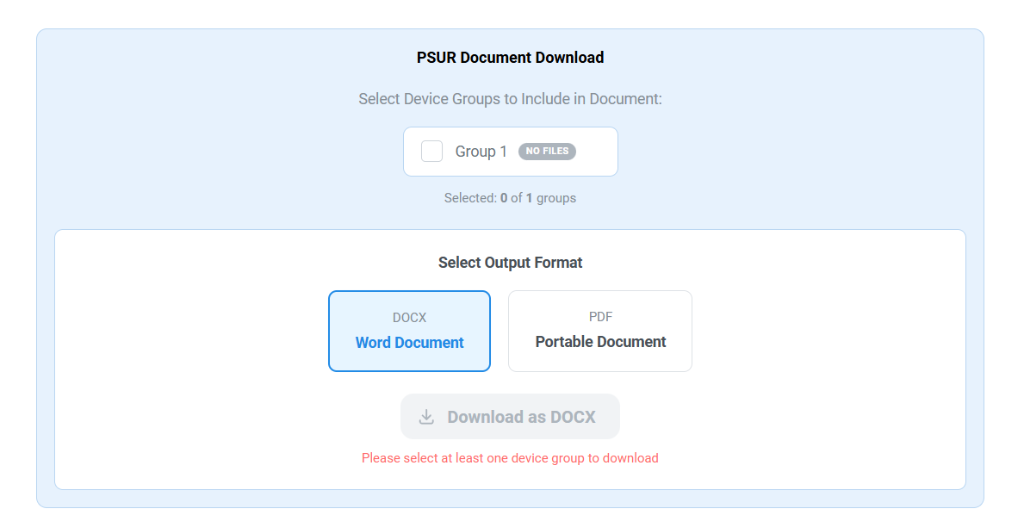
Generate the final output package:
- Device Group Selection: choose to generate the report for specific device groups or the entire portfolio.
- Output Format:
- Word Document (DOCX): For further editing or formatting.
- Portable Document (PDF): For a locked, distributable record.
- Validation: The system prevents download if critical sections (like at least one device group) are missing, preventing incomplete submissions.