Account Onboarding
Welcome to DataReality! This guide covers the essential steps to activate your account, secure your profile, and join your organization's workspace.
1. Invitation & Activation
Access to the DataReality NUI platform is by invitation only. Administrators generate these invites to ensure strict access control.
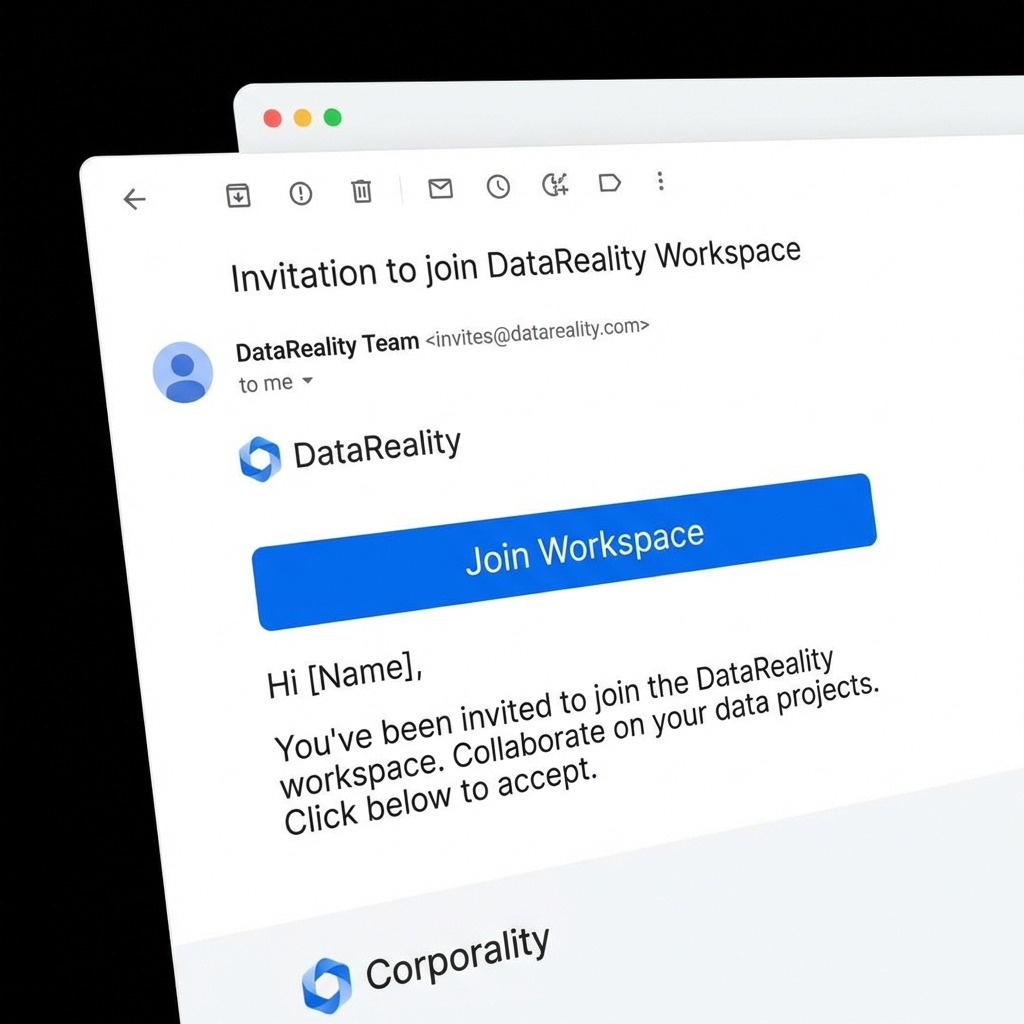
- Check your inbox: Look for an email from
no-reply@thedatareality.comwith the subject "Invite to join DataReality". - Verify Sender: Always ensure the sender domain matches
@thedatareality.combefore clicking. A generic banner is standard for external emails, but Phishing risks persist. - Click Access Link: Click the Join Workspace button. This secure token is valid for 48 hours.
Note: If the link expires, request a re-send. Do not forward this email; the link is bound to your specific email address.
2. Profile Setup
Upon verification, you must configure your personal profile. This data is critical for compliance auditing.
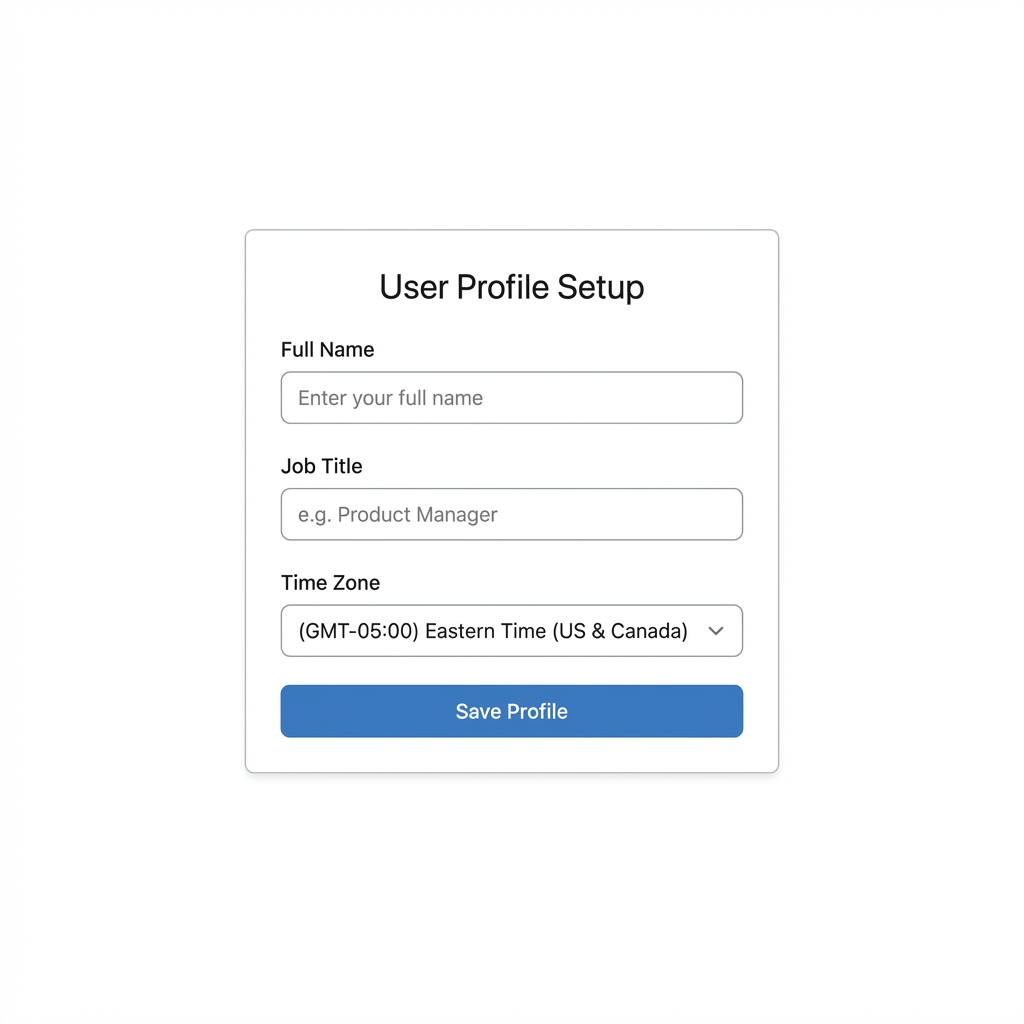
- Full Name: Legal name required. This text string appears on all Electronic Signatures and Audit Logs for actions you perform.
- Job Title: Used for Role-Based Access Control (RBAC) categorization (e.g., "Quality Engineer").
- Time Zone: Critical Setting. All PSUR reports, regulatory submissions, and timestamped events will be localized to this setting. Ensure it matches your primary place of work.
3. Security Configuration (2FA)
DataReality enforces Two-Factor Authentication (2FA) for all users to ensure rigorous data protection.
- Choose Method: You can use an authenticator app (recommended) or SMS.
- Authenticator App: Scan the QR code using Google Authenticator, Authy, or Microsoft Authenticator.
- SMS: Enter your mobile number to receive a verification code.
- Verify: Enter the 6-digit code generated by your app or sent to your phone to confirm setup.
- Backup Codes: Download and store your backup recovery codes in a secure location.
4. Joining Your Organization
After security configuration, you land on your Organization's workspace.
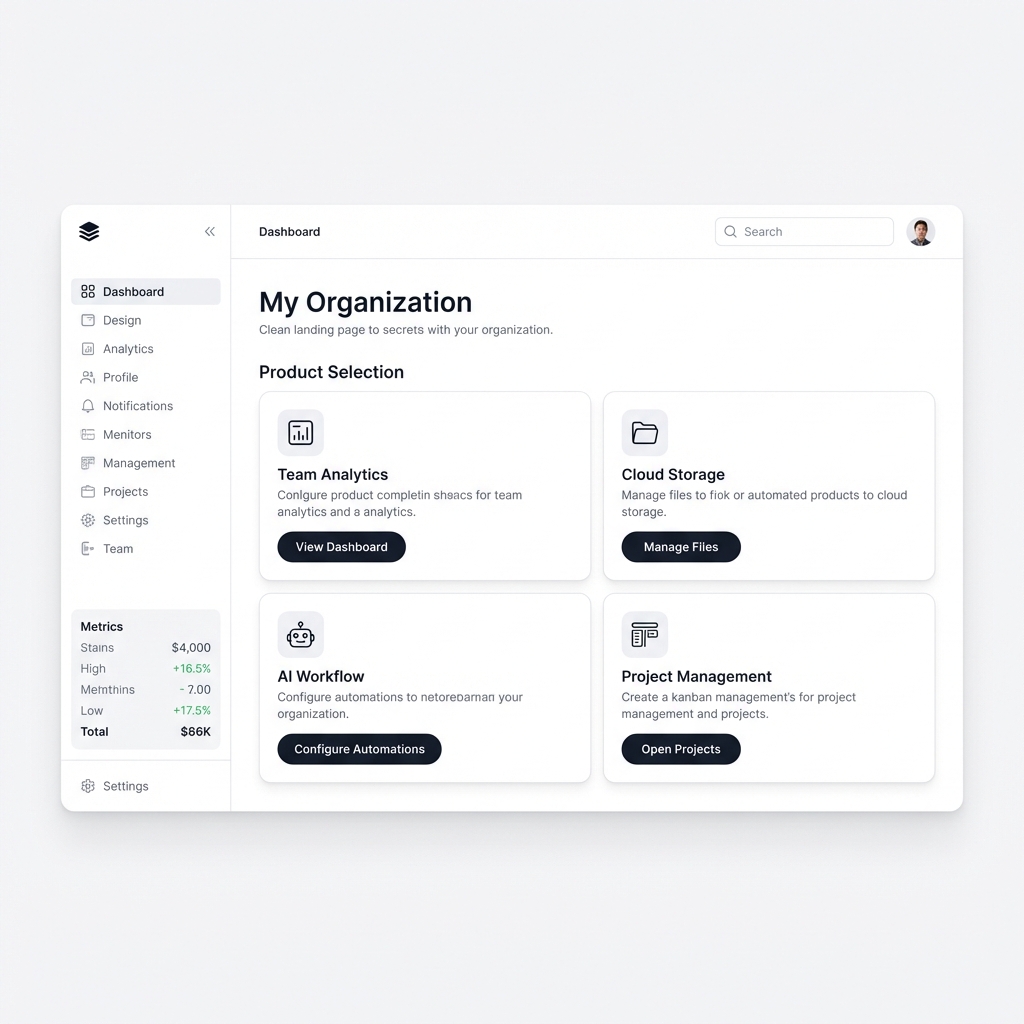
- Workspace Scope: A single user may belong to multiple Organizations (e.g., Parent Corp vs. Regional Subsidiary). Use the top-left dropdown to switch contexts.
- Product Access: Your view is filtered by Product Preference. If a product is missing, it means your RBAC policy restricts access to that specific device family. Contact your System Admin to request expanded permissions.
Now that you are logged in, proceed to Event Distribution to understand how data is visualized on your dashboard.