Sign-up Essentials
Before you begin the account onboarding process, ensure you have the following prerequisites ready. This helps streamline your activation and prevents security setup delays.
1. Authentication Interface
The DataReality secure portal manages all user access. Familiarize yourself with these core screens.
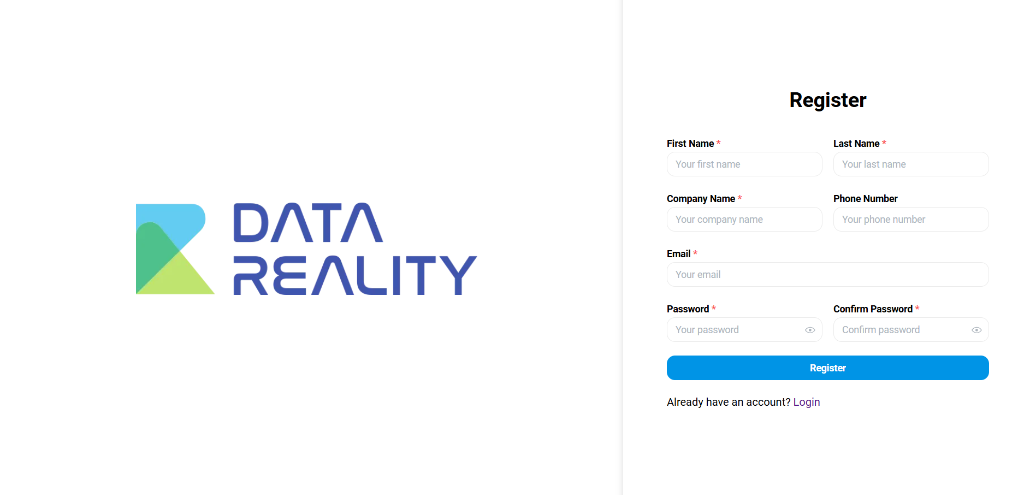
Account Registration
Your journey begins with registration. Ensure all details match your corporate identity for verification.
- First/Last Name: Must match your government-issued ID for audit trails.
- Company Name: Must match the legal entity defined in your DataReality Service Agreement.
- Phone Number: Required for secondary identity verification (SMS fallback).
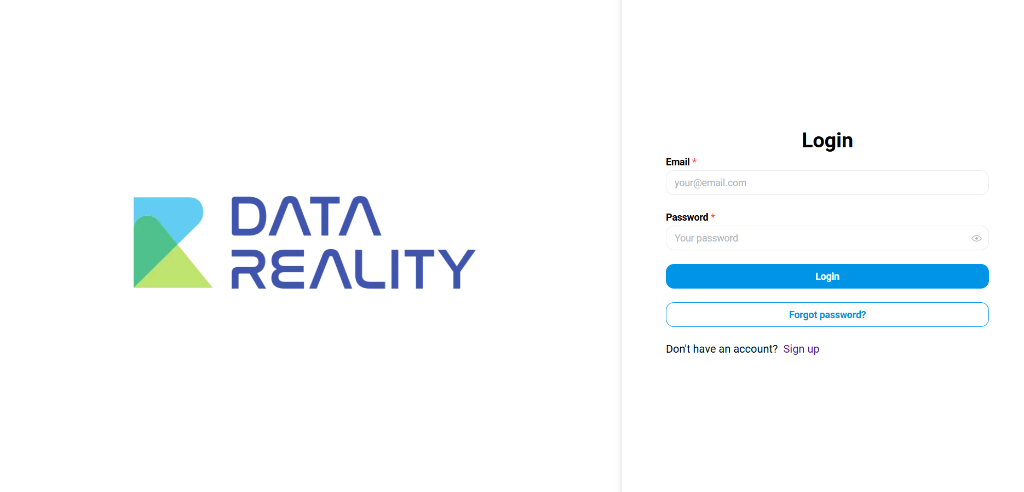
Secure Login
Access the platform via the unified login portal. Note the requirement for email and password validation.
Password Policy:
- Minimum 12 characters
- Must contain uppercase, lowercase, number, and special character (
!@#$%^&*)- Cannot be one of your last 5 passwords
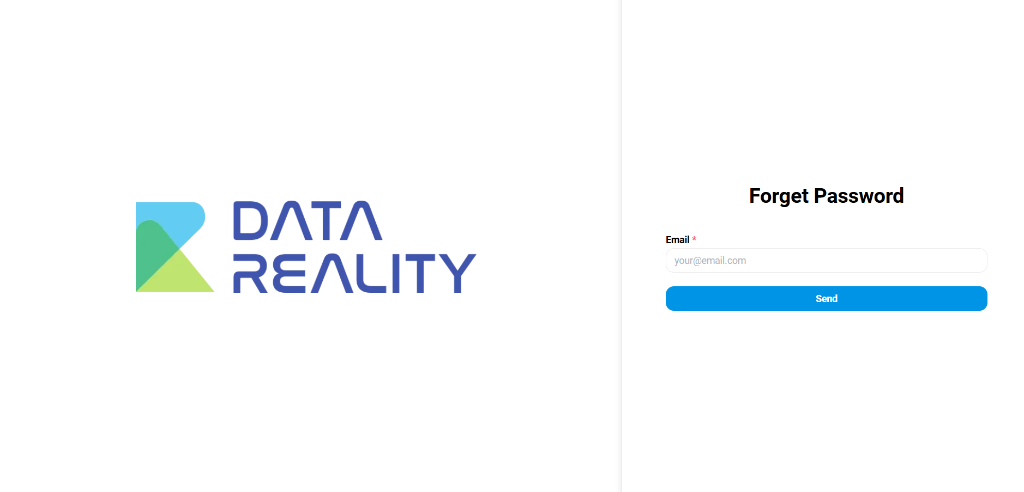
Password Recovery
If you lose access, use the automated recovery flow to reset your credentials securely.
2. Supported Browsers
DataReality NUI is optimized for modern web browsers. For the best experience and security, please use the latest versions of:

- Google Chrome (v90+) - Recommended for best performance
- Microsoft Edge (v90+)
- Mozilla Firefox (v88+)
- Safari (v14+)
Hardware Recommendations
- Screen Resolution: Minimum
1366x768. Recommended1920x1080for complex dashboard visualizations. - Memory: Minimum 8GB RAM recommended for handling large datasets in NUI.
Note: Internet Explorer is not supported.
3. Email Requirements

- Corporate Email: You must use the corporate email address where you received your invitation. Personal email addresses (Gmail, Yahoo, etc.) are blocked for security compliance.
- Allowlisting: Ask your IT department to allowlist the domain
thedatareality.comandno-reply@thedatareality.comto prevent invitation links from being quarantined. - Link Expiry: Invitation links are valid for 48 hours. If expired, request a new link from your admin.
4. Authenticator App
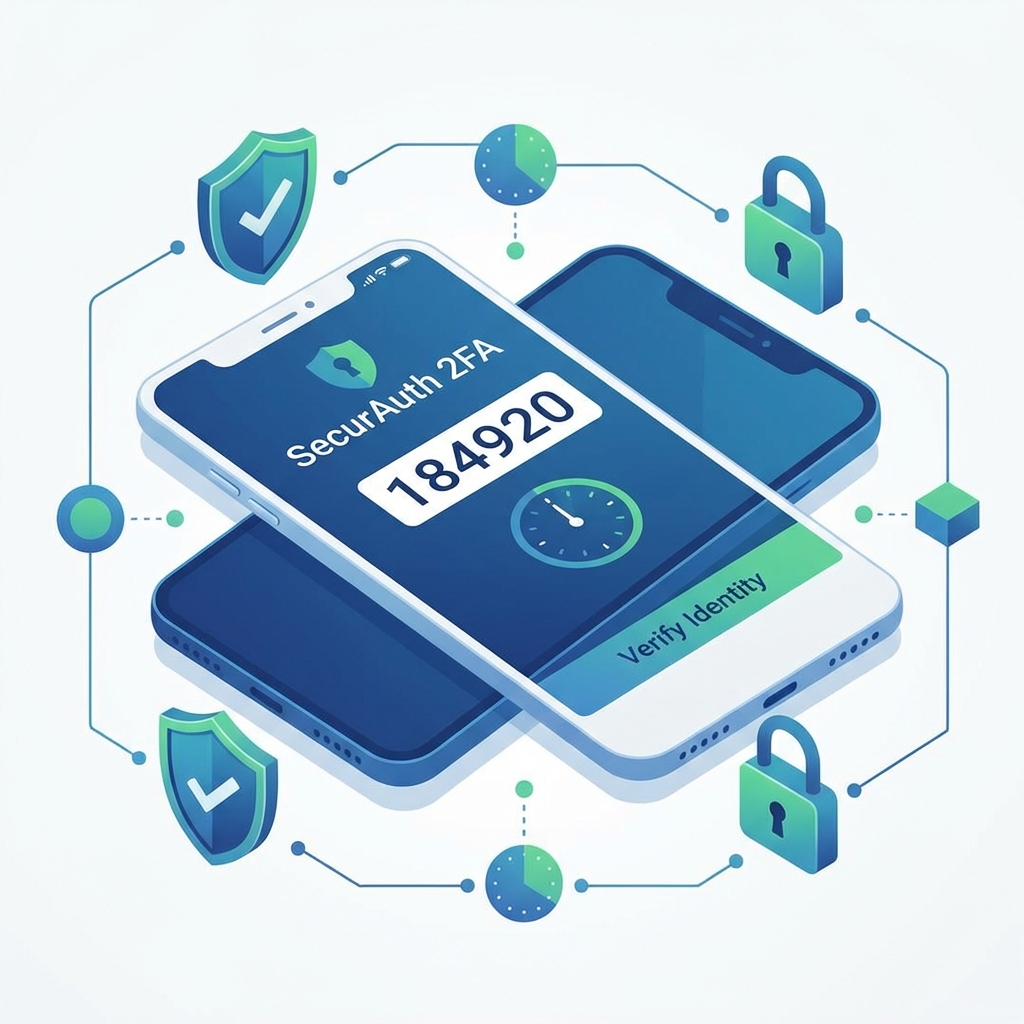
You will need a mobile device with a valid authenticator app installed for 2FA. We support Time-based One-Time Password (TOTP) apps such as:
Ensure your device time is set to "Automatic" to prevent code synchronization errors.
Troubleshooting 2FA
- Code Invalid? Check your device's time settings. Even a 1-minute drift can cause failure.
- New Device? You will need your Backup Codes (saved during setup) to login and re-configure your authenticator on a new phone.