Roles & Permissions Management
Overview
The Roles & Permissions system in DataReality provides a robust Role-Based Access Control (RBAC) framework designed to secure sensitive data while ensuring users have the access necessary to perform their duties. This system is compliance-ready (21 CFR Part 11, GDPR) and offers granular control over every module.
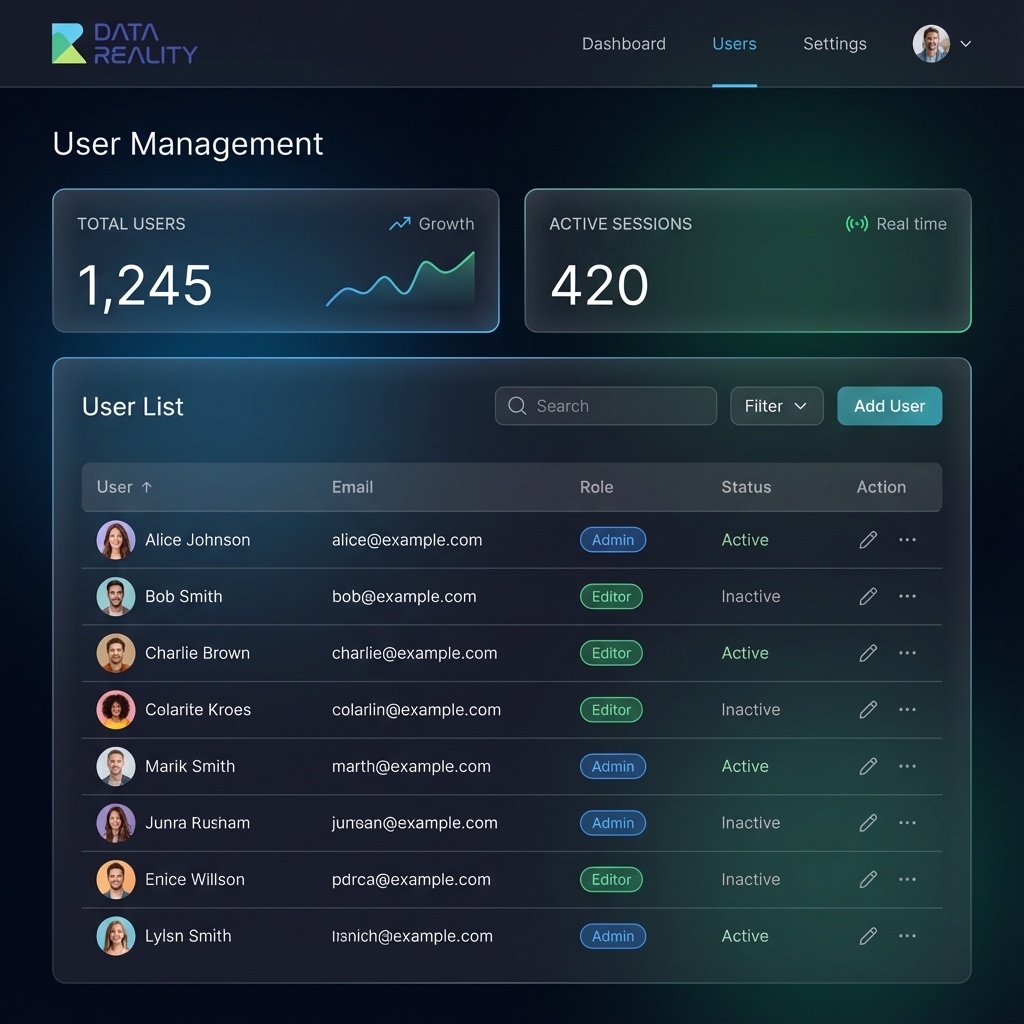
User Management
Administrators can manage users directly from the User Management dashboard.
Key Actions:
- Invite Users: Send email invitations to new team members.
- Assign Roles: Designate one or more roles during invitation or anytime thereafter.
- Status Tracking: Monitor "Active", "Pending", or "Suspended" statuses.
- Session Control: View active sessions and force-logout users if potential compromise is detected.
Note: For enterprises, we support Single Sign-On (SSO) integration with Okta, Azure AD, and Google Workspace.
Role Definitions
DataReality ships with four pre-defined roles optimized for typical organizational structures. These roles cannot be deleted but can be customized in Enterprise plans.
| Role | Description | Typical User |
|---|---|---|
| User Admin | Full access to all modules, system configuration, and audit logs. | CTO, VP of Quality, IT Security |
| Company Admin | Manages organization-specific settings, users, and groups. | QA Director, Department Lead |
| User | Standard access to create and edit documents within assigned projects. | Engineers, Risk Analysts |
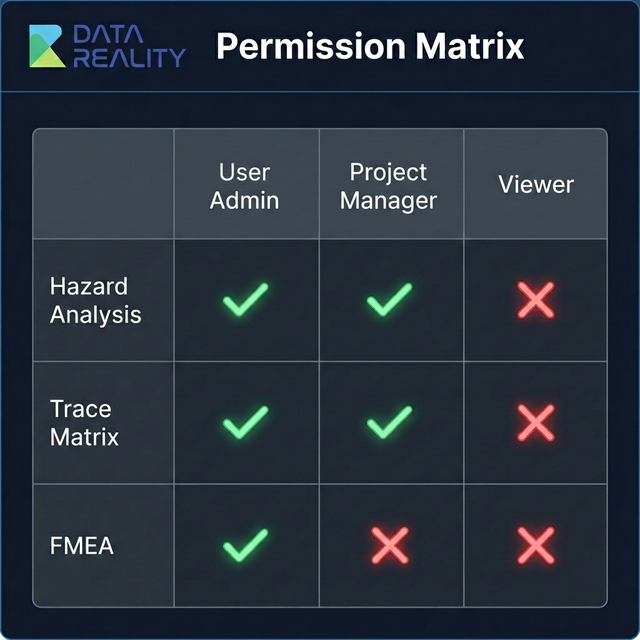
Permission Matrix
The following matrix details the specific capabilities of each role across the platform's core modules.
Granular Permissions
Each role comprises a set of granular permissions:
- Create: Initialize new records or documents.
- Read: View documents and dashboards.
- Update: Modify existing un-approved records.
- Delete: Remove records (Hard delete is restricted to Admins; soft delete for others).
- Approve: Electronic signature authority for finalizing documents.
Security & Compliance
Audit Logs
Every change to a role or permission set is logged in the immutable Audit Trail.
- Who: The admin who made the change.
- What: The specific permission modified.
- When: UTC timestamp.
Multi-Factor Authentication (MFA)
MFA can be enforced globally for specific roles (e.g., Admins) or for the entire organization to add an extra layer of security.
Best Practices
Always assign the minimum level of access required for a user to perform their job. It is safer to upgrade a Viewer to a Contributor later than to grant Admin access by default.
We recommend a quarterly review of all "User Admin" accounts to ensure that access is still required and appropriate.