PSUR Configuration
The Periodic Safety Update Report (PSUR) is a critical compliance document. DataReality allows Company Administrators to define standard templates, AI prompts, and abbreviation lists that enforce consistency across all reports generated by your organization.
1. Configuration Library
Navigate to Company Settings > PSUR Config. This central repository lists all report templates available to your team.
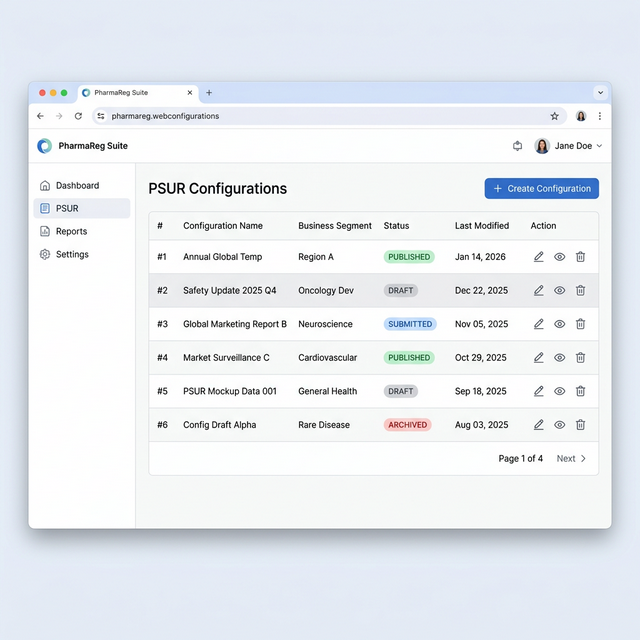
- Status:
PUBLISHED: Available for use in new reports.DRAFT: Work-in-progress; only visible to admins.
- Business Segment: categorizes templates (e.g., "Vision Care", "Medical Devices") to organize large portfolios.
- Actions: Edit or Delete configurations directly from this list.
2. Creating a Configuration
Click + Create Configuration to start a new template definition.
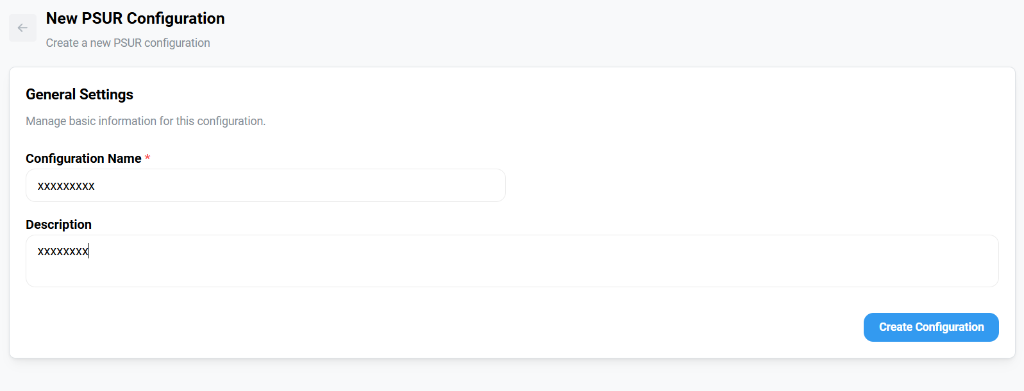
General Settings
- Configuration Name: A recognizable title (e.g., "EU-MDR Annual Template").
- Description: Guidelines for when this specific config should be used.
3. Editing a Configuration
The editor is divided into four functional tabs, allowing granular control over every aspect of report generation.
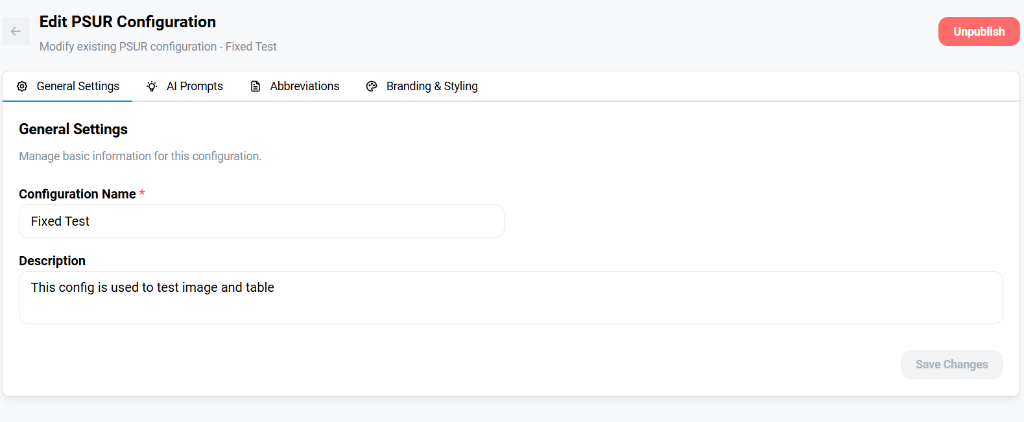
A. AI Prompts
This is the core implementation of DataReality's Generative AI. You define the system prompts that guide the AI in synthesizing safety data.
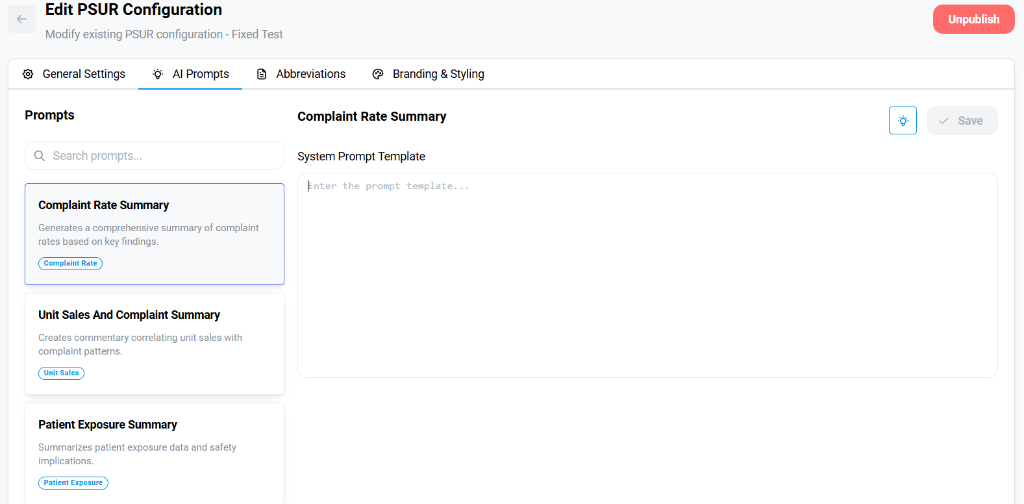
- Prompt Library: Select a section (e.g., "Complaint Rate Summary", "Patient Exposure").
- System Prompt Template: Enter the instructions.
- Example: "Summarize the complaint rate trends for the last 12 months, highlighting any deviations > 5%."
- Variables: Use dynamic placeholders like
{{product_name}}or{{date_range}}to make prompts reusable.
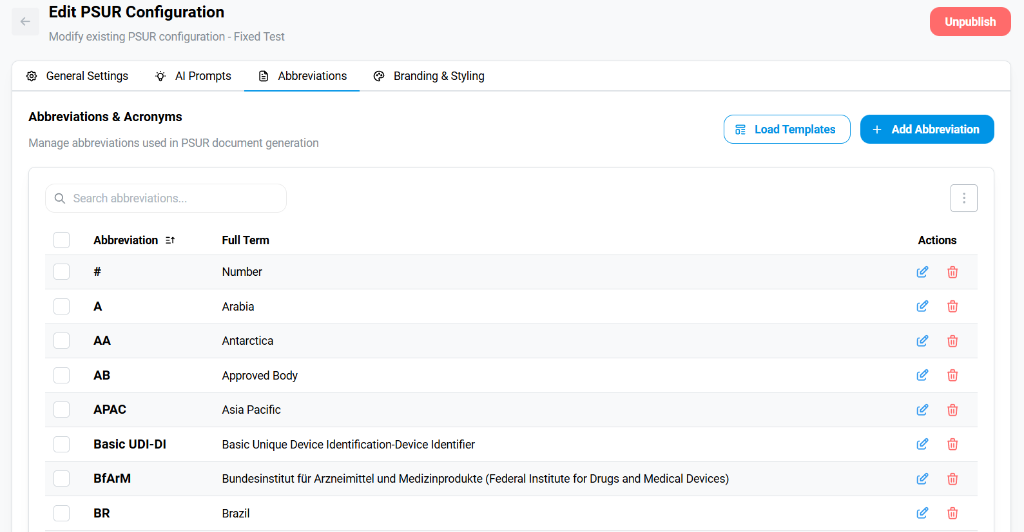
B. Abbreviations & Acronyms
Standardize terminology across all documents. DataReality will automatically expand these acronyms on their first occurrence in the text, ensuring readability and compliance without manual proofreading.
C. Branding & Styling
Customize the visual identity of your generated reports. This ensures that every PDF exported from DataReality aligns with your corporate branding guidelines.
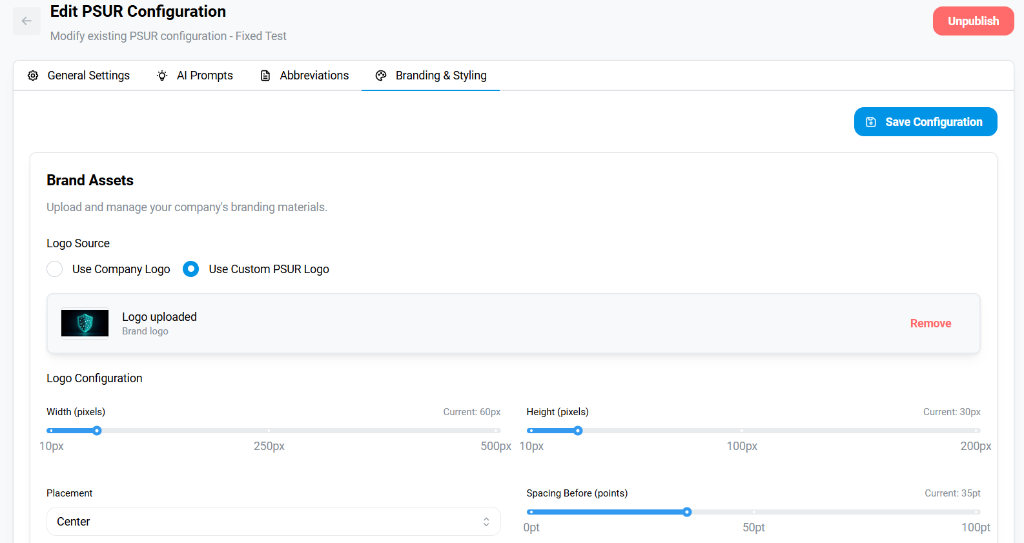
Brand Assets
- Logo Source: Choose between the default Company Logo (defined in global settings) or upload a Custom PSUR Logo specific to this report type.
- Logo Configuration:
- Dimensions: Fine-tune the
WidthandHeightsliders (in pixels) to ensure the logo renders clearly without distortion. - Placement: Align the logo (
Left,Center,Right) to match your document header standards. - Spacing: Adjust the
Spacing Before(in points) to control the vertical whitespace between the page margin and the logo.
- Dimensions: Fine-tune the
Changes to a Published configuration propagate immediately. For major updates, we recommend creating a new DRAFT version first, validating it on a sample report, and then swapping the PUBLISHED status.