User Management
Effective user management is the cornerstone of protecting your organization's data integrity. As an Administrator, you have full control over who accesses your workspace, ensuring that only authorized personnel can view or edit sensitive information.
The User Directory
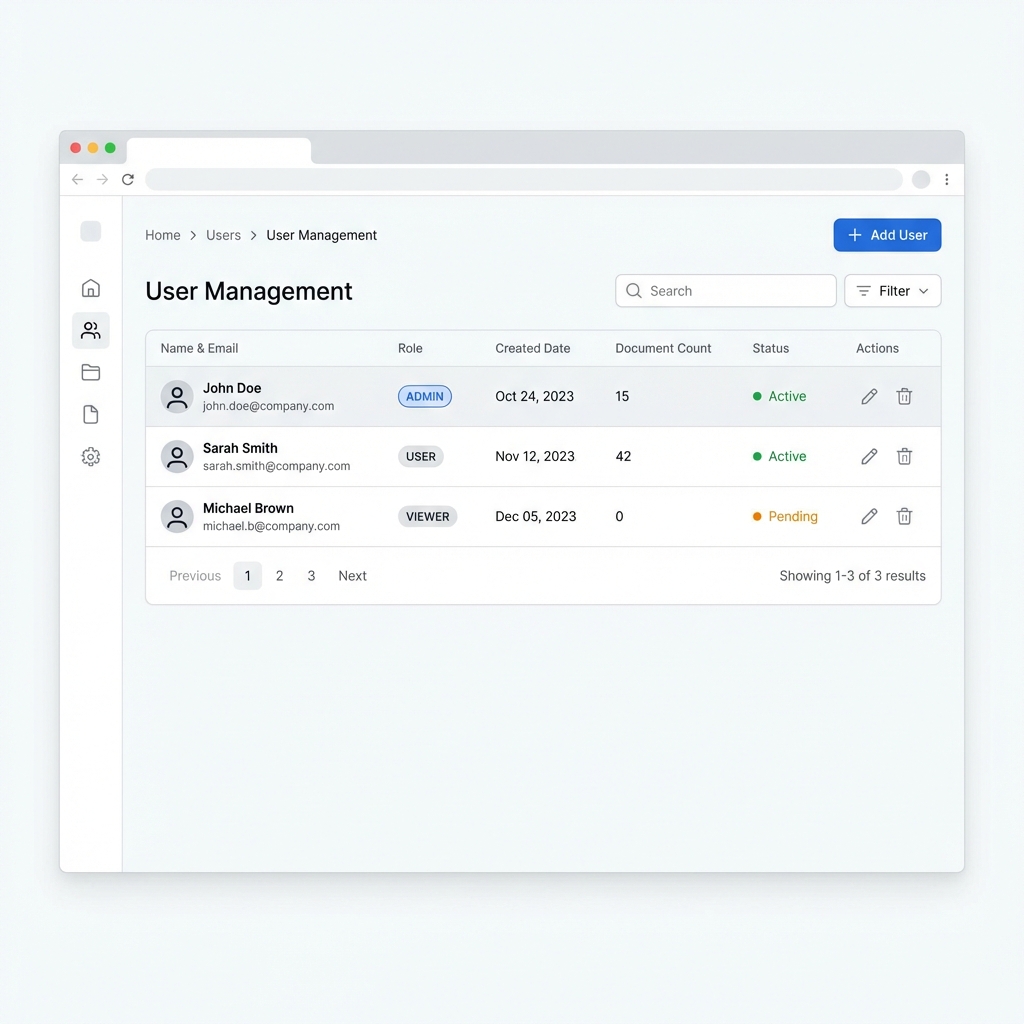
Navigate to Company Settings > Users to access your central directory. This dashboard provides a real-time view of all account statuses, roles, and recent activity.
Key Columns
- Name & Email: The primary identifiers for your team members.
- Role: Visual badges (e.g.,
ADMIN,USER) indicate access levels at a glance. - Created Date: usage tracking for auditing.
- Document Count: A quick metric showing user contribution across modules like PSUR, VGL, and FMEA.
- Status:
Active: User has full access.Pending: Invite sent but not yet accepted.Deactivated: Access revoked.
Adding New Users
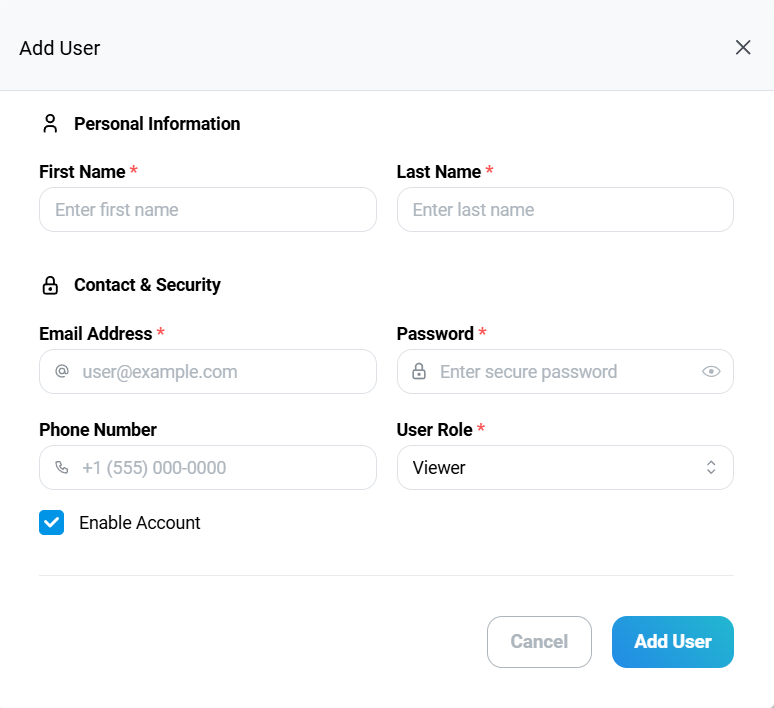
Invite team members securely using the "Add User" workflow. This process ensures all necessary profile data is captured upfront.
1. Personal Information
- First & Last Name: Mandatory legal names required for 21 CFR Part 11 electronic signatures.
- Identity Verification: Ensure names match official company records.
2. Contact & Security
- Email Address: Must belong to an allowlisted corporate domain. Personal emails are blocked by default.
- Temporary Password: Set a strong initial password. The user will be forced to change this upon first login.
- User Role: Assign the appropriate privilege level:
- Viewer: Read-only access (Auditors, Stakeholders).
- User: Can create/edit records but cannot approve.
- Admin: Full system configuration and user management.
3. Activation
- Enable Account: Check this box to immediately trigger the invitation email. If unchecked, the profile is created in a "Draft" state.
Security Best Practice
Always assign the Least Privilege necessary for a user to perform their job. You can always elevate permissions later.
Managing Active Users
Use the Actions column to maintain your directory:
- Edit (
 ): Update details like phone numbers or roles.
 - Delete (
 ): Permanently remove a user. Note: For compliance, "deleted" users are Soft Deleted to preserve historical audit trails.